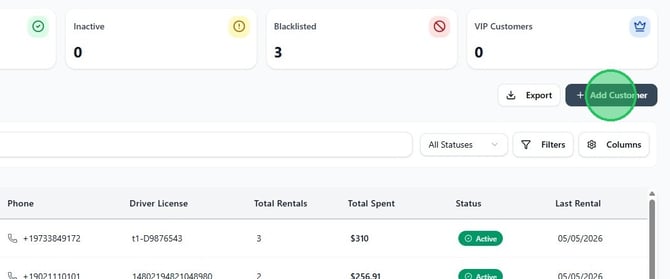
Navigate to Customers
1. From the sidebar, select Customers, then click Add Customer.
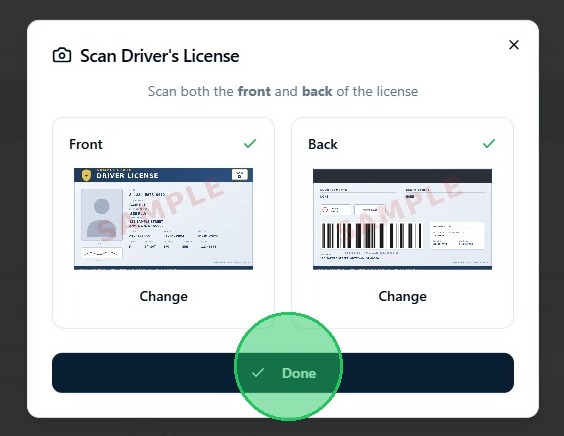
Scan the driver's license (optional)
2. To pre-fill the form using the customer's driver's license, click Scan License. In the Scan Driver's License dialog, use Take Photo or Choose from Gallery to capture both the front and back of the license, then click Done. If you prefer to enter the customer's information manually, skip to step 3.
Please note: This feature does not confirm the validity of the driver's license. It simply uses the scan to prefill the driver's information.
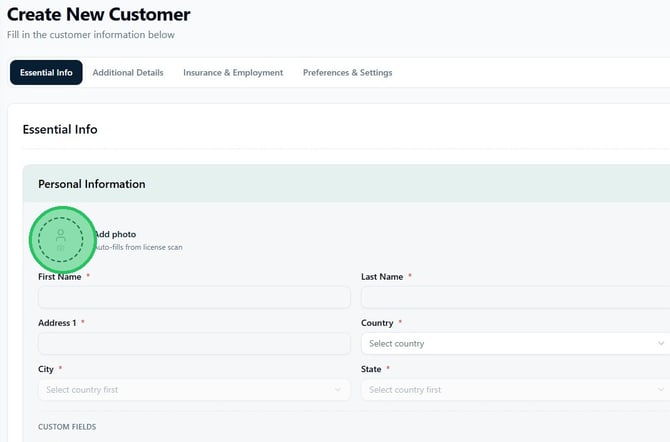
Complete the Essential Info tab
3. On the Essential Info tab, fill in the Personal Information section. Required fields are marked with a red asterisk and include First Name, Last Name, Date of Birth, Address 1, Country, Zip Code, City, and State. If you scanned the license, these fields will be pre-filled — verify the details before continuing. Adding a customer photo is optional; click the photo icon and select Take Photo or Choose from Gallery.
4. In the Contact Information section, enter the customer's Email address and Mobile Phone number. Email is used for confirmations, receipts, and rental documents. Mobile phone is used for rental notifications and pickup reminders.
In the Driver License Information section, enter the License Number, License State, and License Exp Date. The expiration date must be valid and not expired. Click Add Customer to create the profile.
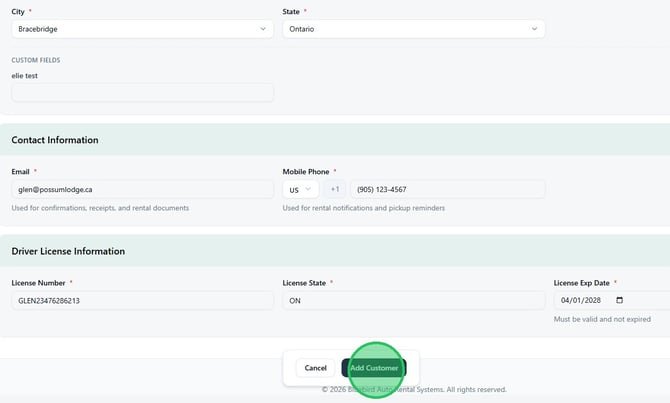
5. The customer profile is now created. The additional tabs can be used to record more information as needed.
Under the Additional Details tab you can enter extended personal information and identification documents.
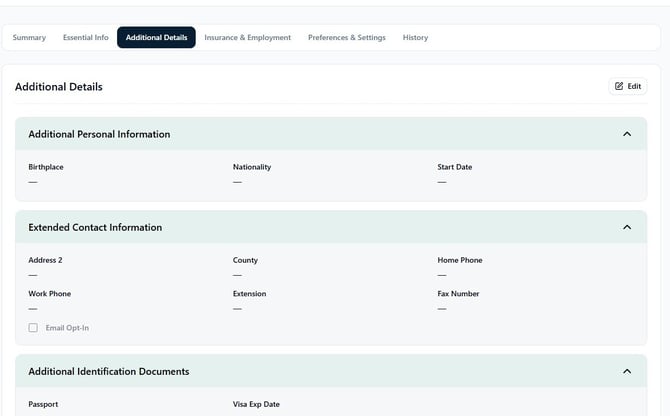
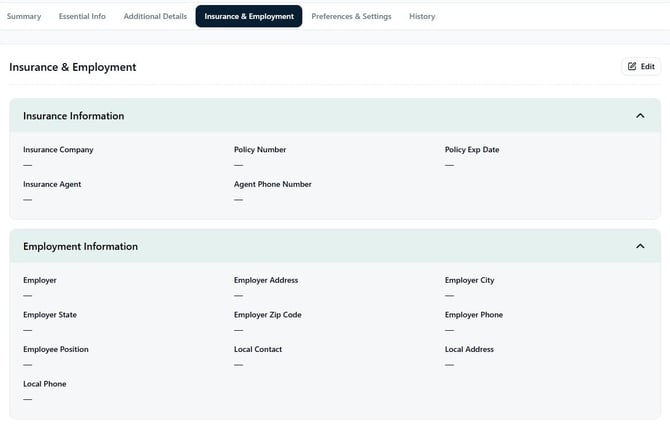
6. The Insurance & Employment tab stores the customer's insurance policy details and employer information.
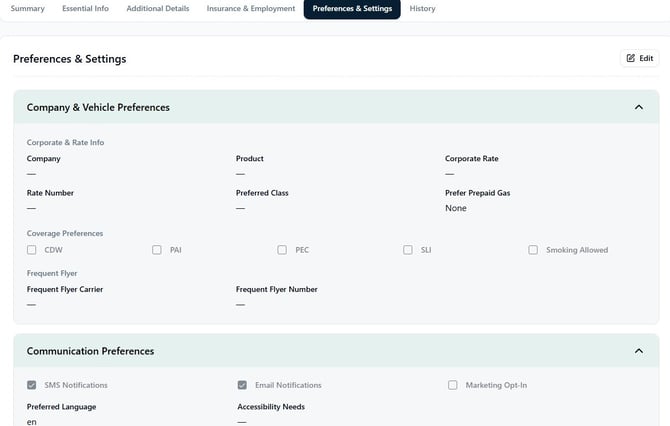
7. The Preferences & Settings tab stores company and vehicle preferences, coverage preferences, frequent flyer details, and communication preferences.
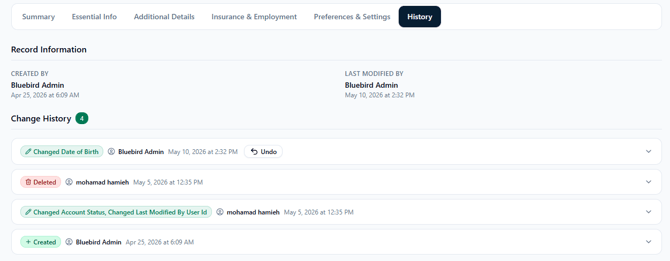
8. The History tab shows a full audit trail of changes made to the profile, including who made each change and when.