When a vehicle is damaged or involved in an incident during a rental, you create a claim to track the full lifecycle — from initial report through to settlement. Linking the claim to the rental agreement auto-imports the vehicle and renter details so you don't have to enter them manually.
Start the claim
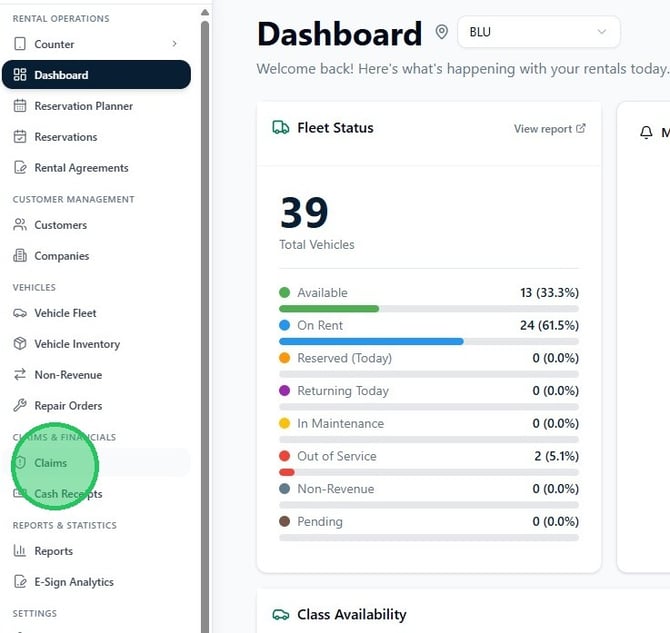
1. From the sidebar, click Claims under the Claims & Financials section.
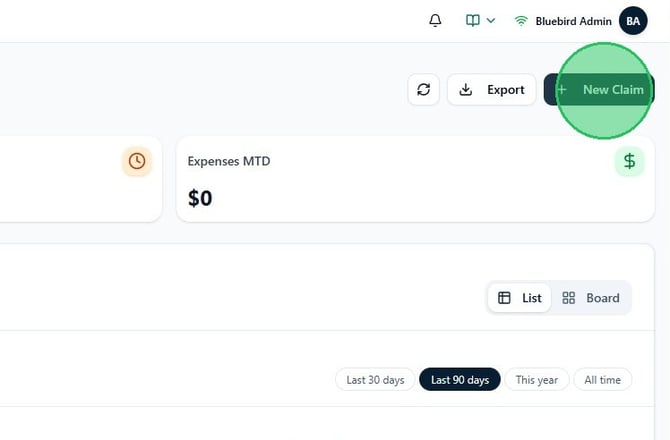
2. Click New Claim in the top right corner of the Claims dashboard.
Link the rental agreement
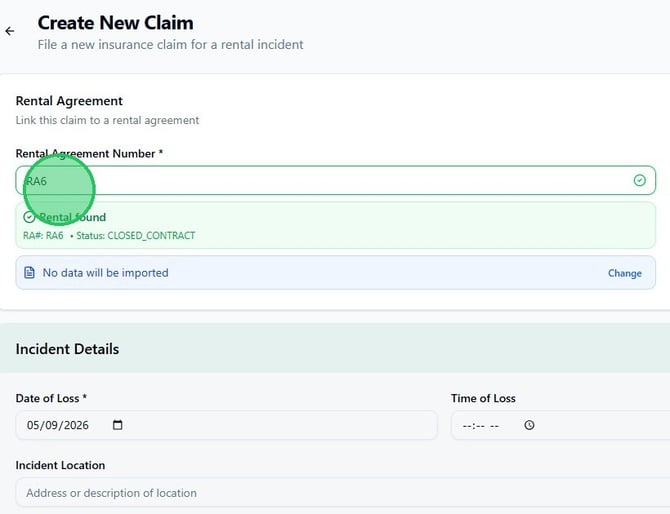
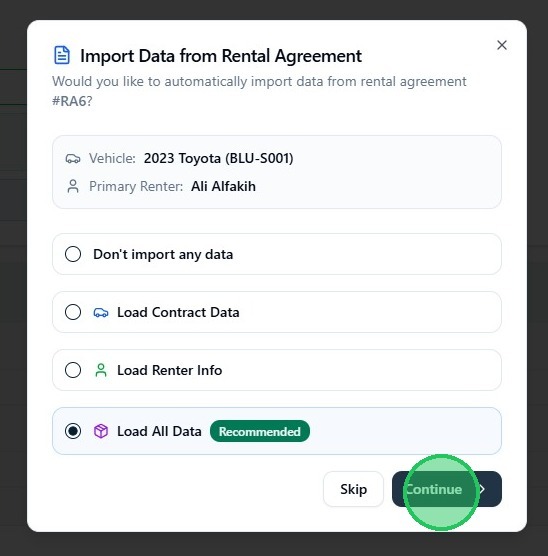
3. On the Create New Claim form, click the Rental Agreement Number field and type or paste the RA number. When the system finds a match, a green Rental found confirmation appears below the field with the RA number and contract status. An Import Data from Rental Agreement prompt will appear — this lets you pull the vehicle and renter details directly from the contract.
4. In the Import Data from Rental Agreement dialog, select Load All Data (recommended) to import both the vehicle and renter contact information from the rental agreement. Then click Continue.
You can also choose Load Contract Data (vehicle only), Load Renter Info (contact only), or Don't import any data if you prefer to enter details manually. Click Skip to bypass the import entirely.
Fill in incident details
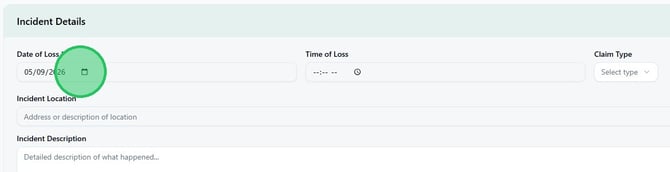
5. In the Incident Details section, enter the Date of Loss and, if known, the Time of Loss. Use the Claim Type dropdown to categorize the incident (for example, Damage, Theft, or Accident).
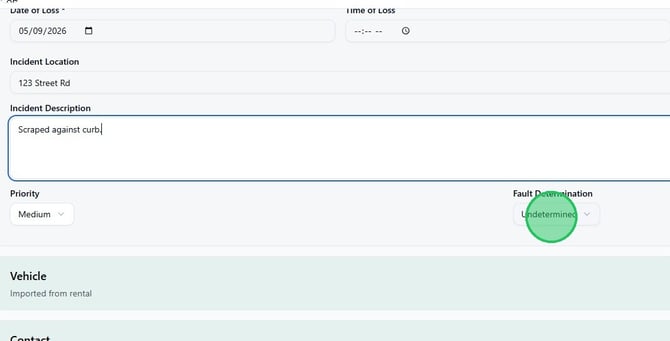
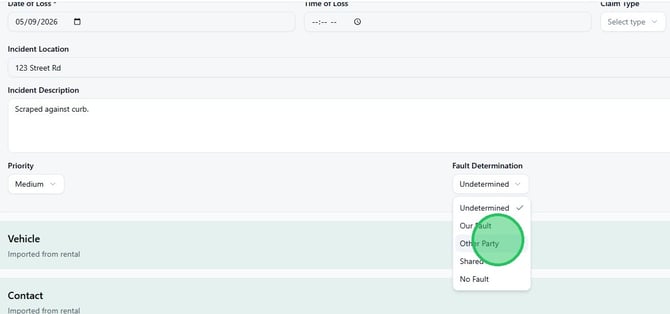
6. Fill in the Incident Location with the address or description of where the incident occurred. Then enter a detailed Incident Description explaining what happened. Set the Priority (defaults to Medium) and choose the appropriate Fault Determination — options are Undetermined, Our Fault, Other Party, Shared, and No Fault.
7. Click the Fault Determination dropdown to select the correct fault assignment. Choosing Other Party is appropriate when a third party caused the damage and you intend to pursue subrogation recovery.
Verify vehicle and contact information
8. Expand the Vehicle section to confirm the imported vehicle details — Year, Make, Model, Color, Unit Number, VIN, License Plate, and License State. If the claim was linked to a rental agreement with Load All Data, these fields are pre-populated from the contract.
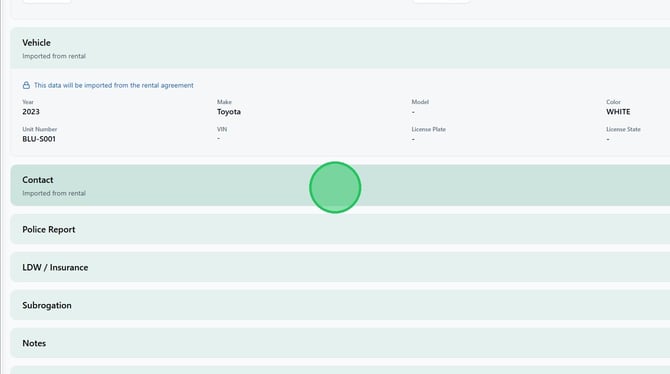
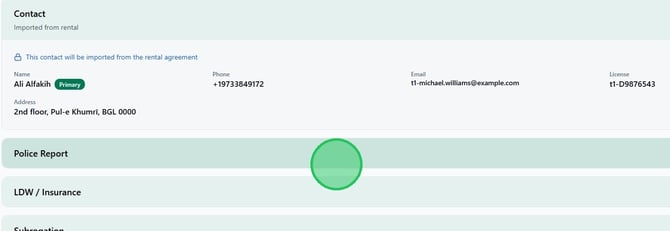
9. Expand the Contact section to confirm the primary renter's details — Name, Phone, Email, License number, and Address. The Primary badge identifies the renter from the rental agreement. Update any details if needed.
Record the police report
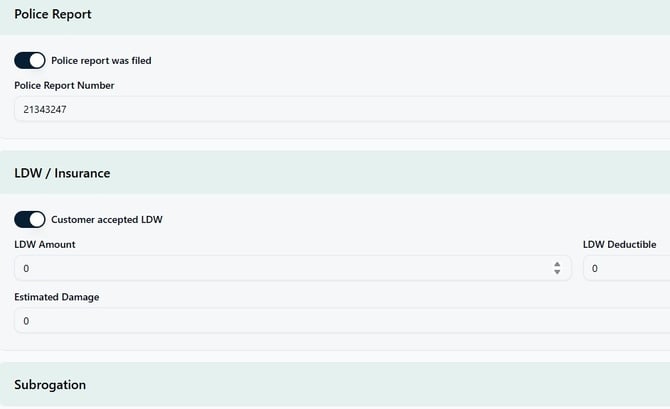
10. Expand the Police Report section. If a police report was filed, toggle Police report was filed on. A Police Report Number field appears — enter the report number.
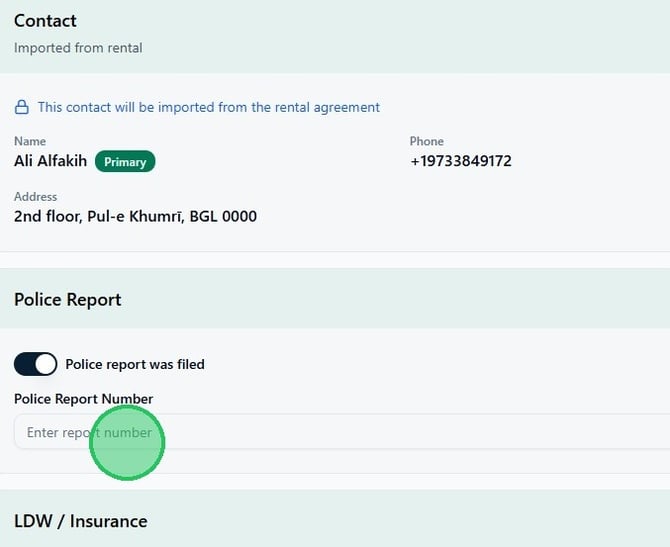
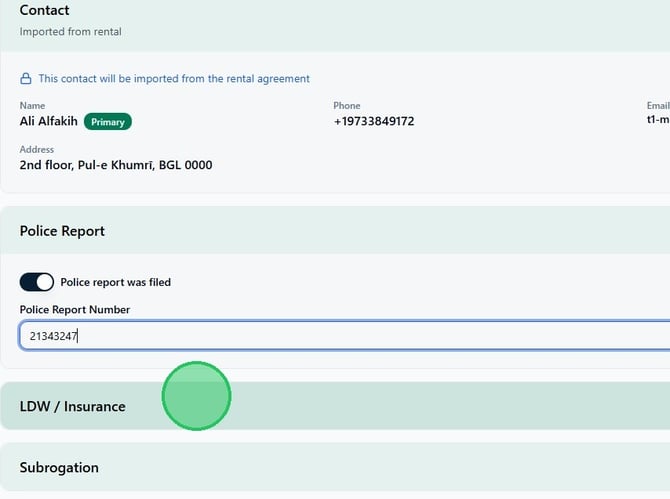
11. With the toggle on and the report number entered, the Police Report section is complete. The full report reference will appear on the saved claim record.
Record LDW and insurance information
12. Expand the LDW / Insurance section. If the customer had Loss Damage Waiver on their rental, toggle Customer accepted LDW on. Enter the LDW Amount (the daily LDW charge from the contract) and the LDW Deductible if applicable. Enter an Estimated Damage amount if a repair estimate is already available — this can be updated later.
Submit the claim
13. Once all sections are complete, click Create Claim in the top right to save and open the claim record.
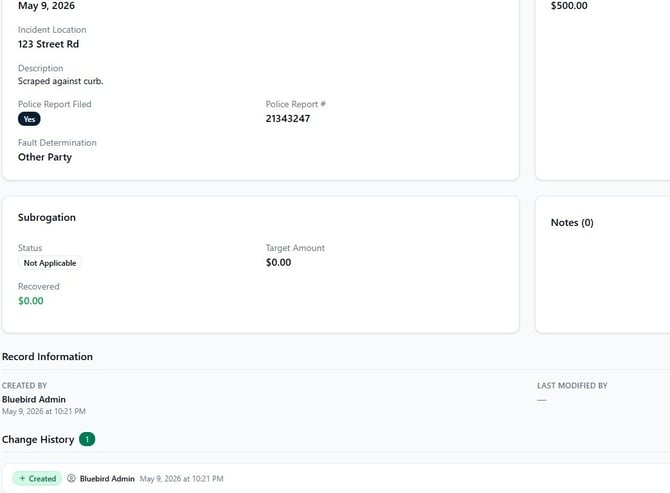
14. The claim is created and opens immediately. Review the summary — incident details, fault determination, police report reference, subrogation status, and change history are all visible. The claim opens in Pending status and moves through the lifecycle as you add expenses, documents, and payments.