
Fuel Types are configured under Business Setup → Vehicle & Product Settings. Each fuel type has a code, a display name, and a unit of measure. The unit of measure controls how fuel is tracked and displayed on rental agreements and check-in screens. RentWorks+ measures fuel in eighths on the rental agreement, but the fuel type's unit of measure (gallons, liters, etc.) is used for pricing and fleet fuel settings.
Navigate to Fuel Types
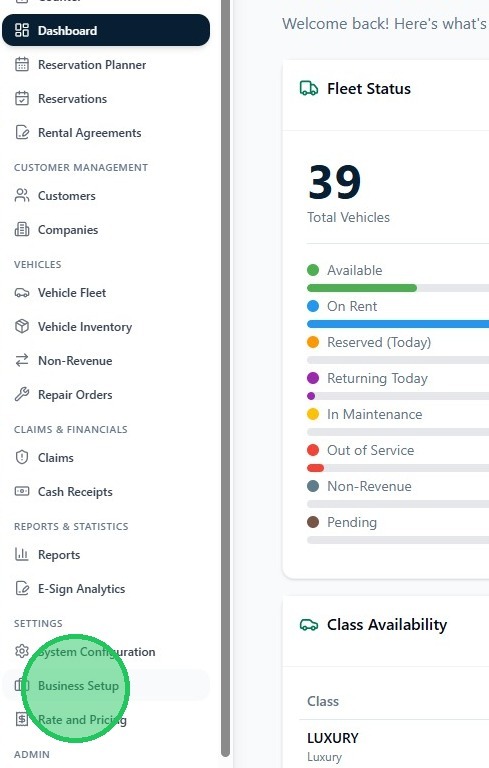
1. In the sidebar under Settings, click Business Setup.
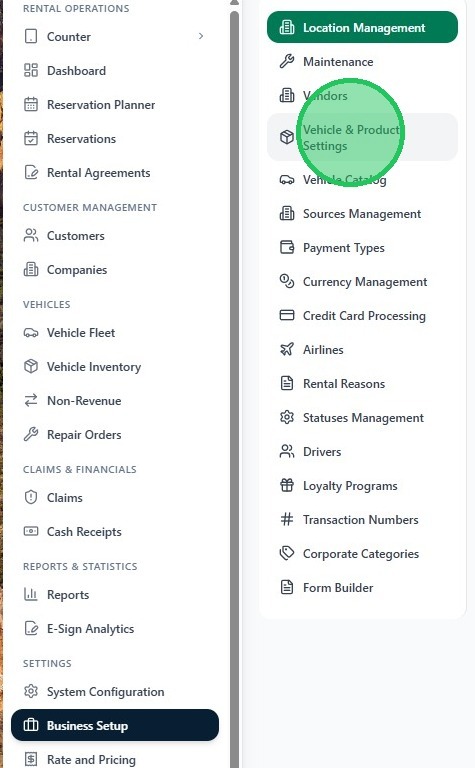
2. In the Business Setup submenu, click Vehicle & Product Settings.
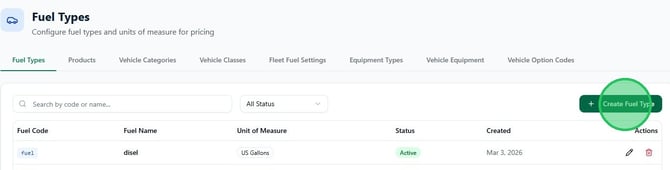
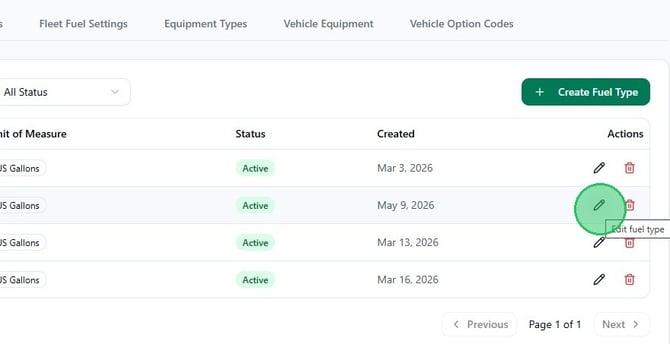
The page opens on the Fuel Types tab. Existing fuel types are listed with their Fuel Code, Fuel Name, Unit of Measure, Status, and creation date. Use the search bar to filter by code or name, or the All Status dropdown to filter by Active or Inactive.
Create a new fuel type
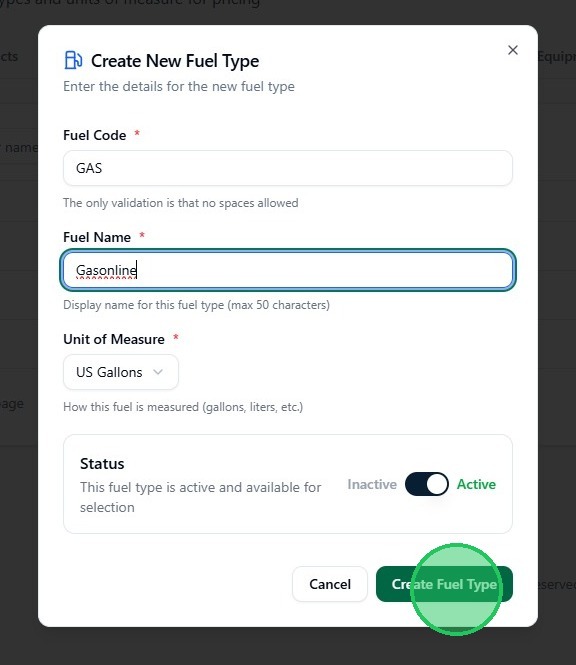
3. Click Create Fuel Type in the top right corner. In the Create New Fuel Type dialog, fill in the following fields:
- Fuel Code — A short identifier with no spaces (e.g.,
GAS,DIESEL,ELECTRIC). The code cannot be changed after creation. - Fuel Name — The display name shown throughout RentWorks+ (e.g., Gasoline, Diesel, Electric). Max 50 characters.
- Unit of Measure — How this fuel is measured. Options include US Gallons, Liters, and others. Select the unit that matches your operation.
- Status — Leave set to Active so the fuel type is immediately available for vehicle assignment.
Click Create Fuel Type to save.
Edit an existing fuel type
4. To update a fuel type, click the pencil icon in the Actions column of the entry you want to edit.
5. The Edit Fuel Type dialog opens with the existing values pre-filled. The Fuel Code is locked and cannot be changed after creation — update the Fuel Name, Unit of Measure, or Status as needed. A Change History panel at the bottom records who created or modified the entry and when. Click Update Fuel Type to save your changes.
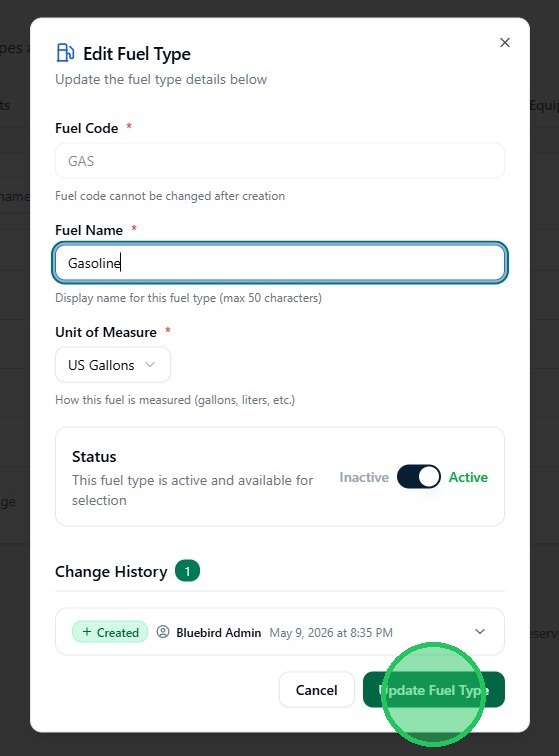
To deactivate a fuel type without deleting it, toggle Status to Inactive. Inactive fuel types no longer appear in vehicle setup or rental flows but their history is preserved.