
User Management is accessible under Settings → System Configuration → User Management in the sidebar. It has six tabs: Users, Roles, Access Rights, Privileges, Audit Log, and SSO / 2FA. Changes to access rights and privileges take effect immediately — no restart or re-login is required.
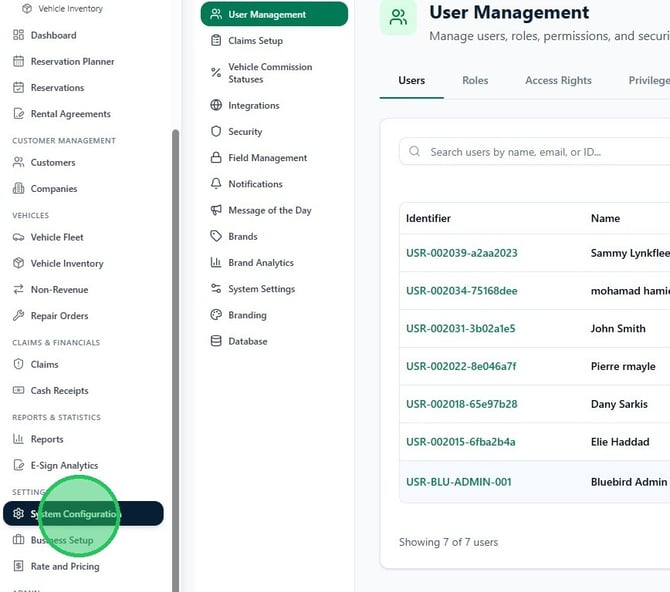
1. From the sidebar, navigate to Settings → System Configuration and click User Management. The page opens on the Users tab, which lists all users in your tenant by identifier and name.
Review roles
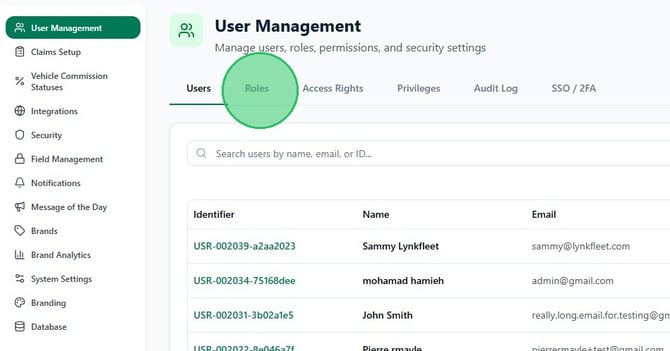
2. Click the Roles tab to view the roles configured for your tenant. Each role has a name, a code badge, and a description. Default roles include Accounting, Administrator, Agent, Driver, Manager, and Staff. Custom roles can also be created for your organization.
Configure Access Rights
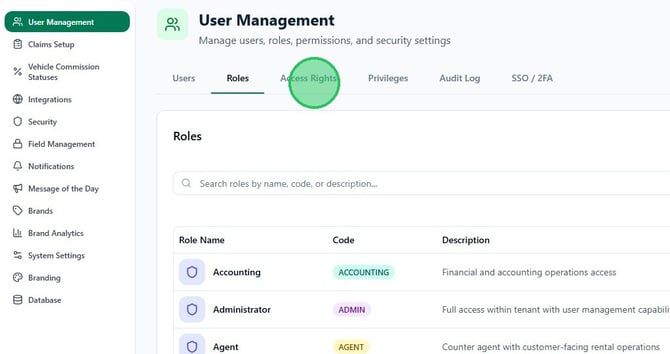
Access Rights control which modules and sections of RentWorks+ each role can see and interact with. These settings apply to all users assigned to that role.
3. Click the Access Rights tab.
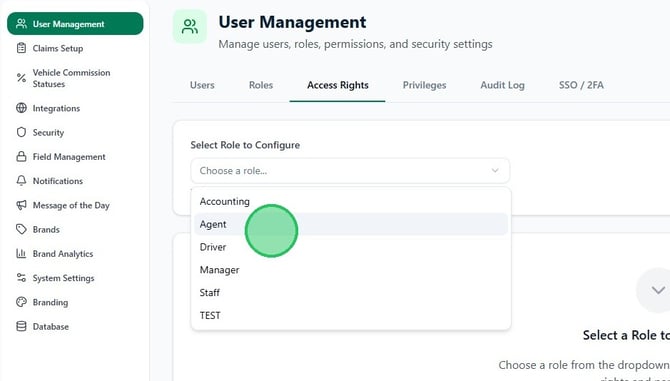
4. Open the Select Role to Configure dropdown and choose the role you want to update — for example, Agent.
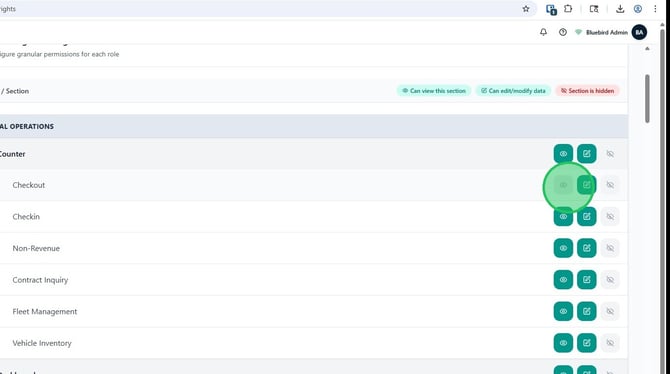
5. The page loads a full list of modules grouped by area — Rental Operations, Customer Management, Vehicles, and others. Each row represents one section, and each section has three permission options toggled by clicking the corresponding icon:
Can view this section (eye icon) — the user can see this area but cannot make changes.
Can edit/modify data (pencil icon) — the user can view and edit data in this section.
Section is hidden (hidden icon) — the section does not appear for this role at all.
Click the appropriate icon for each section to set the desired permission. The active setting is highlighted in green.
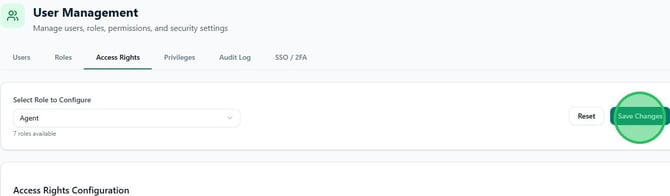
6. When finished, click Save Changes to apply the updated permissions for the selected role. Click Reset to discard unsaved changes and revert to the last saved state.
Configure Special Privileges
Special Privileges grant individual users elevated access beyond their role's standard permissions. Unlike Access Rights, which are set per role, privileges are assigned per user.
Note: Privileges grant elevated access rights. Only assign them to trusted users — all privilege changes are recorded in the Audit Log.
7. Click the Privileges tab. Select a user from the dropdown at the top of the page. Use the category filter dropdown to narrow the list — categories include Financial, Reservations, Rentals, and Operations — or use the search bar to find a specific privilege by name.
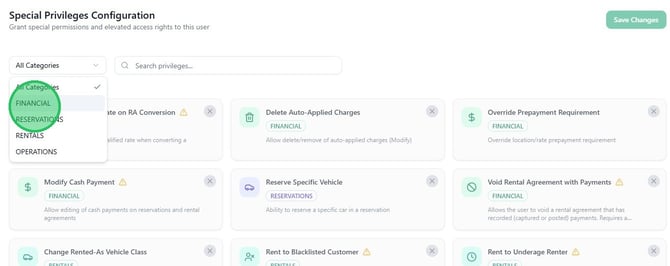
8. To enable a privilege, click its card. An enabled privilege shows a green checkmark in the top-right corner of the card. To remove a privilege, click the × on an enabled card.
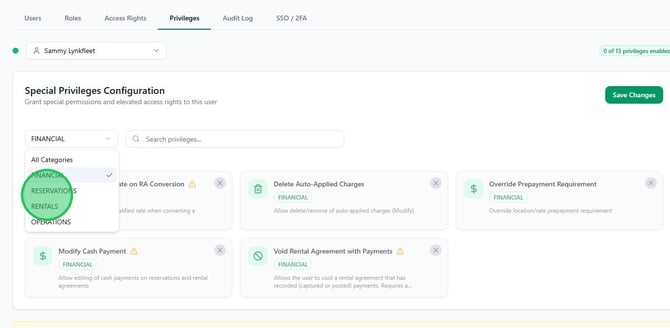
9. Each privilege card shows its name, category badge, and a description of what it allows. For example, Reserve Specific Vehicle (Reservations) allows the user to reserve a specific car in a reservation.
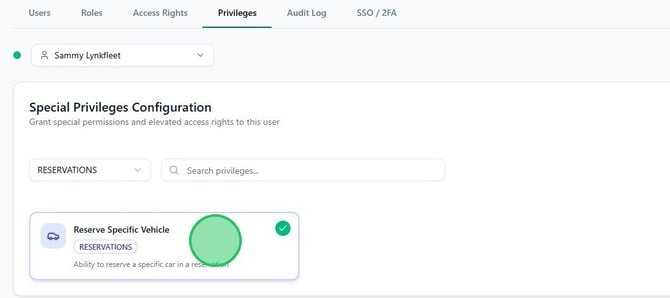
10. Click Save Changes when done. A Privileges saved successfully confirmation appears at the top of the page.
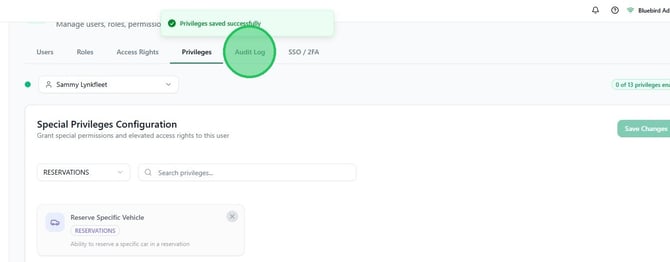
Review the Audit Log
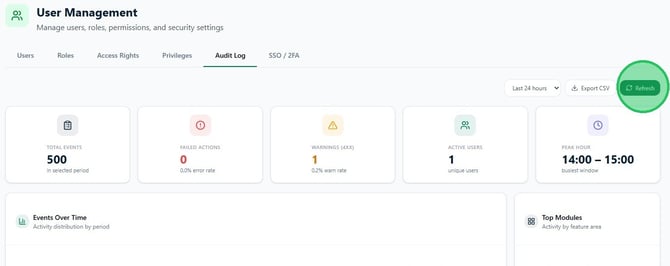
11. Click the Audit Log tab. The page displays a summary dashboard showing Total Events, Failed Actions, Warnings, Active Users, and Peak Hour for the selected time window. Use the time range dropdown (default: Last 24 hours) to adjust the period. Click Refresh to reload the data.
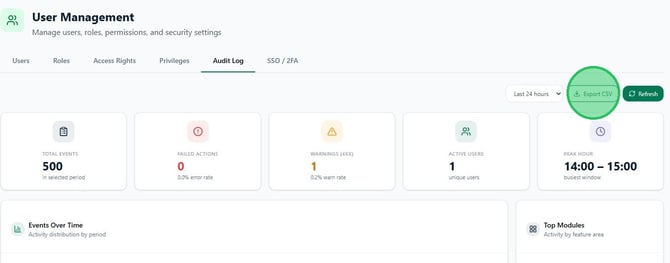
12. To download the full event log, click Export CSV. The file contains a row for each event with the timestamp, module, action, resource, and user.
The SSO / 2FA tab, accessible from the same tab bar, is where two-factor authentication and single sign-on settings are managed for your tenant. Contact your administrator to configure these settings.