
1. Create a location
- From the left menu, select Business Setup.
- Select Location Management, then open the Locations tab.
- Select Add Location.
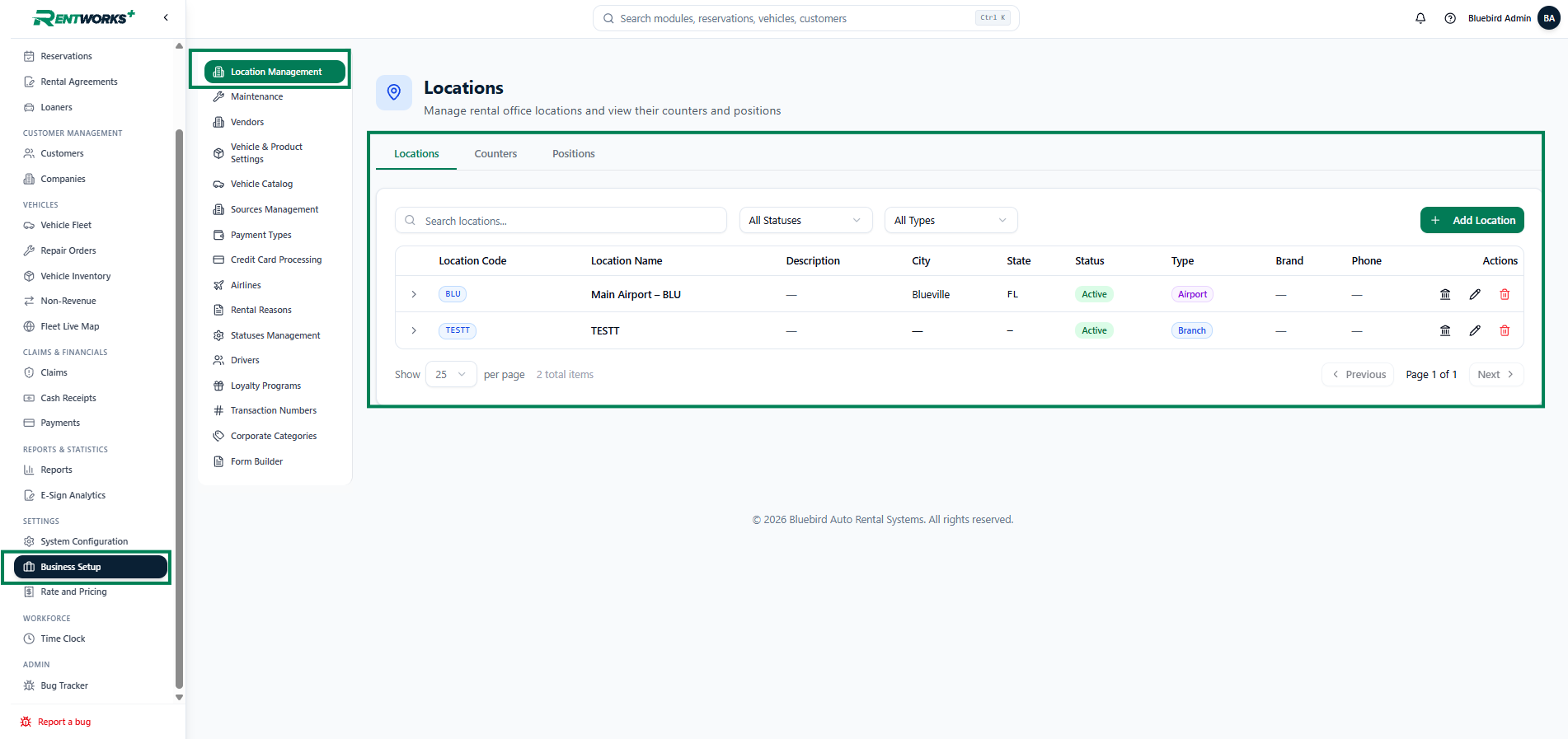
Complete the General tab
| Field | What to enter |
|---|---|
| Location Code * | A code for the location, such as AIRPORT. Spaces are not allowed. |
| Location Name * | The full display name of the location. |
| Description | An optional description of the rental office. |
| Date Opened | The date the location first opened. |
| Default Currency * | The currency used for transactions at this location. |
| Status | Keep the location Active to make it available for selection. |
| Type | Select the appropriate location type. |
Choose your currency carefully. The location’s default currency becomes permanent once the location has transacted.
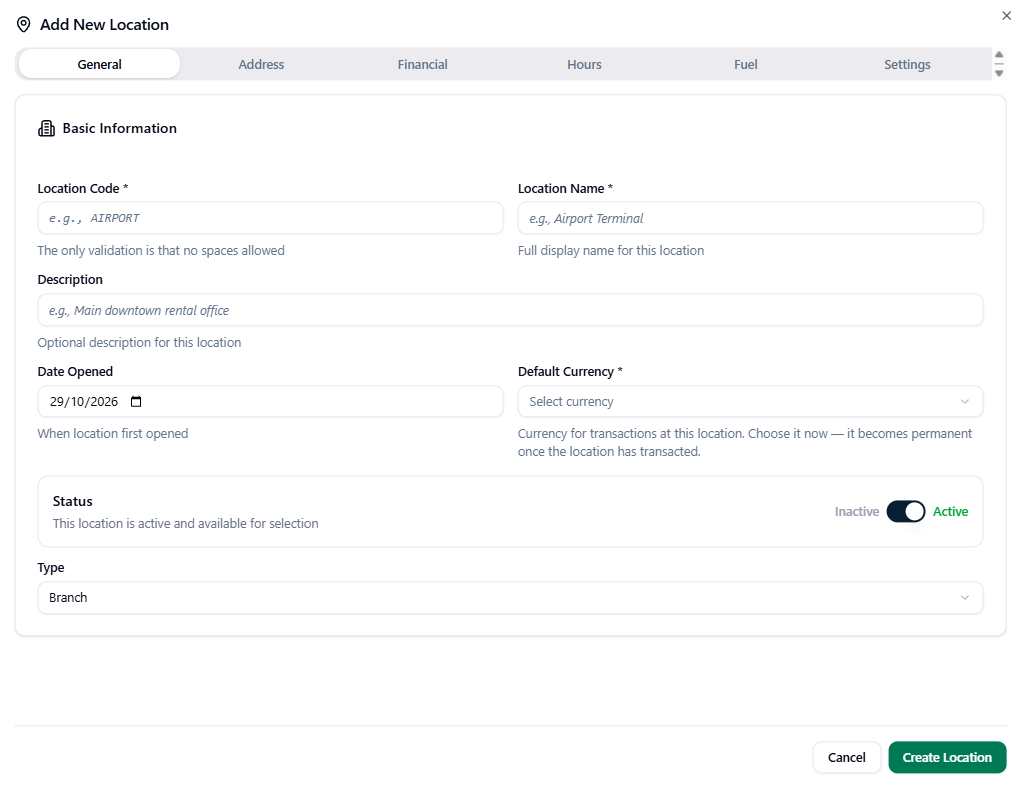
Enter the address and contact details
Open the Address tab and enter the location’s physical address and contact information as applicable.
- Select the Country and State / Province before selecting the City.
- Enter the Zip / Postal Code.
- For airport locations, enter the three-letter IATA Airport Code, if applicable.
- Add the Phone Number, Website Phone Number, Fax Number, and Phone Extension as needed. The Website Phone Number is the number displayed on the website.
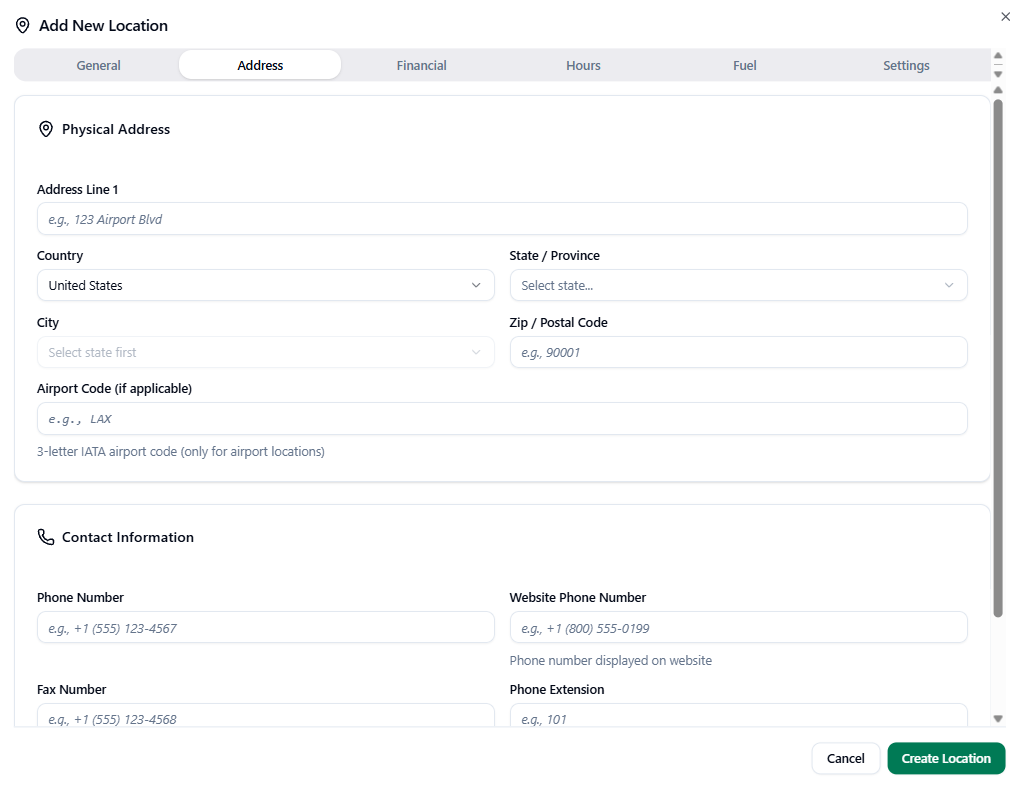
Set operating hours
- Open the Hours tab.
- For each day, set the toggle to Open or Closed.
- For open days, enter the opening and closing times.
- Use Add Time Slot if the day has more than one operating period.
- Review all days, scrolling down as needed.
 Review the Financial, Fuel, and Settings tabs as applicable to your business, then select Create Location to save.
2. Create a counter
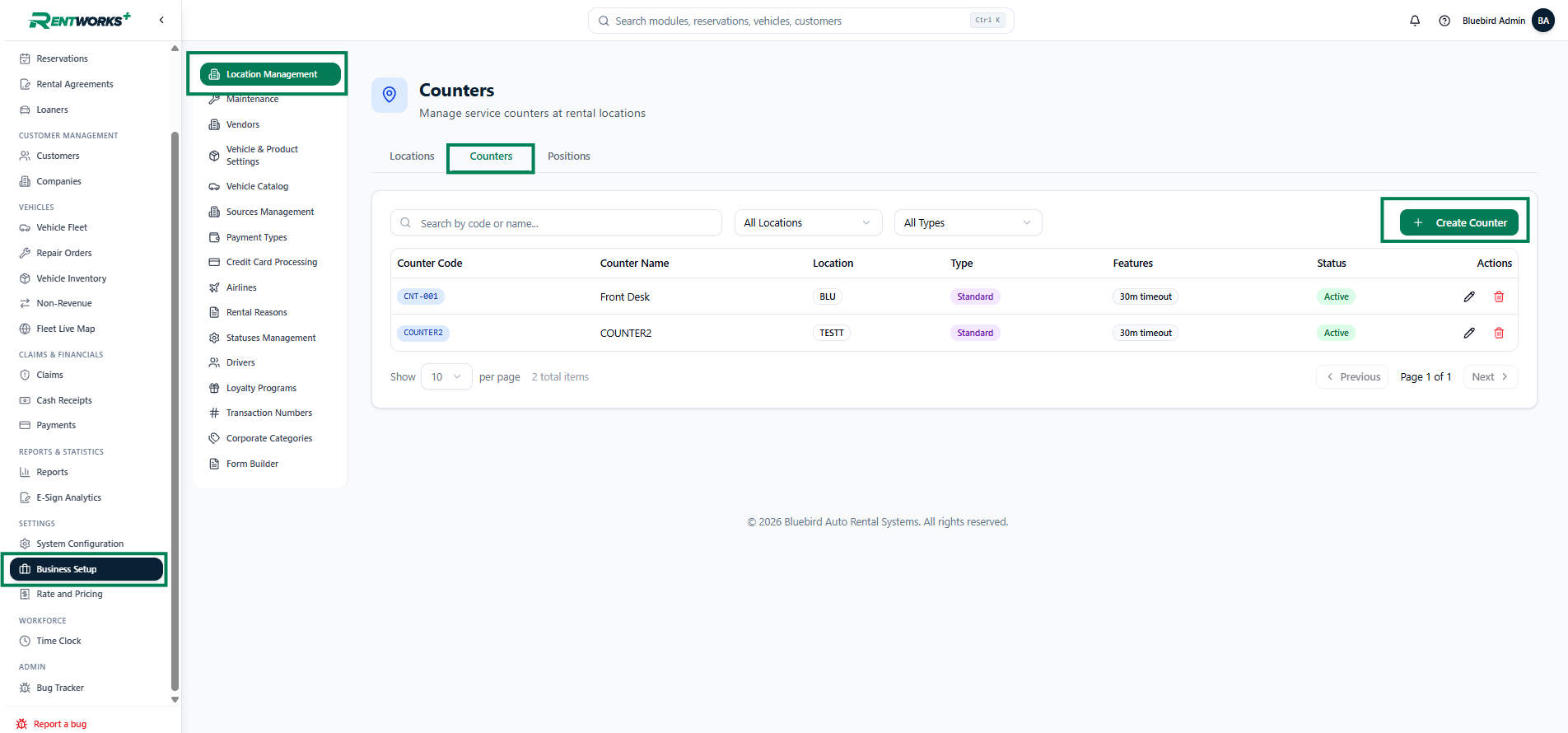
- In Business Setup → Location Management, open the Counters tab.
- Select Create Counter.
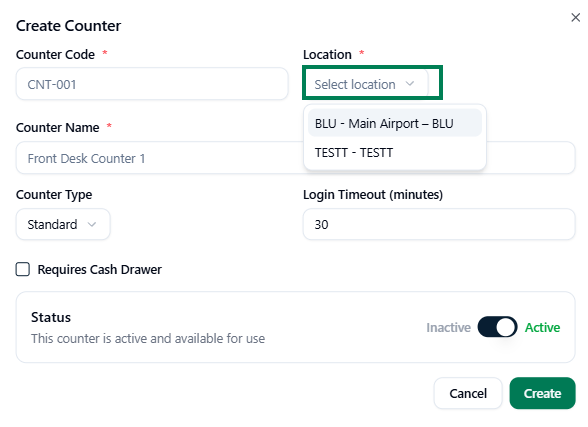
- Enter the required Counter Code and Counter Name.
- Select the Location * where the counter belongs.
- Select the appropriate Counter Type.
- Review the Login Timeout (minutes) value and adjust it as needed.
- Select Requires Cash Drawer if applicable.
- Keep the Status set to Active to make the counter available for use.
- Select Create.
3. Create a position
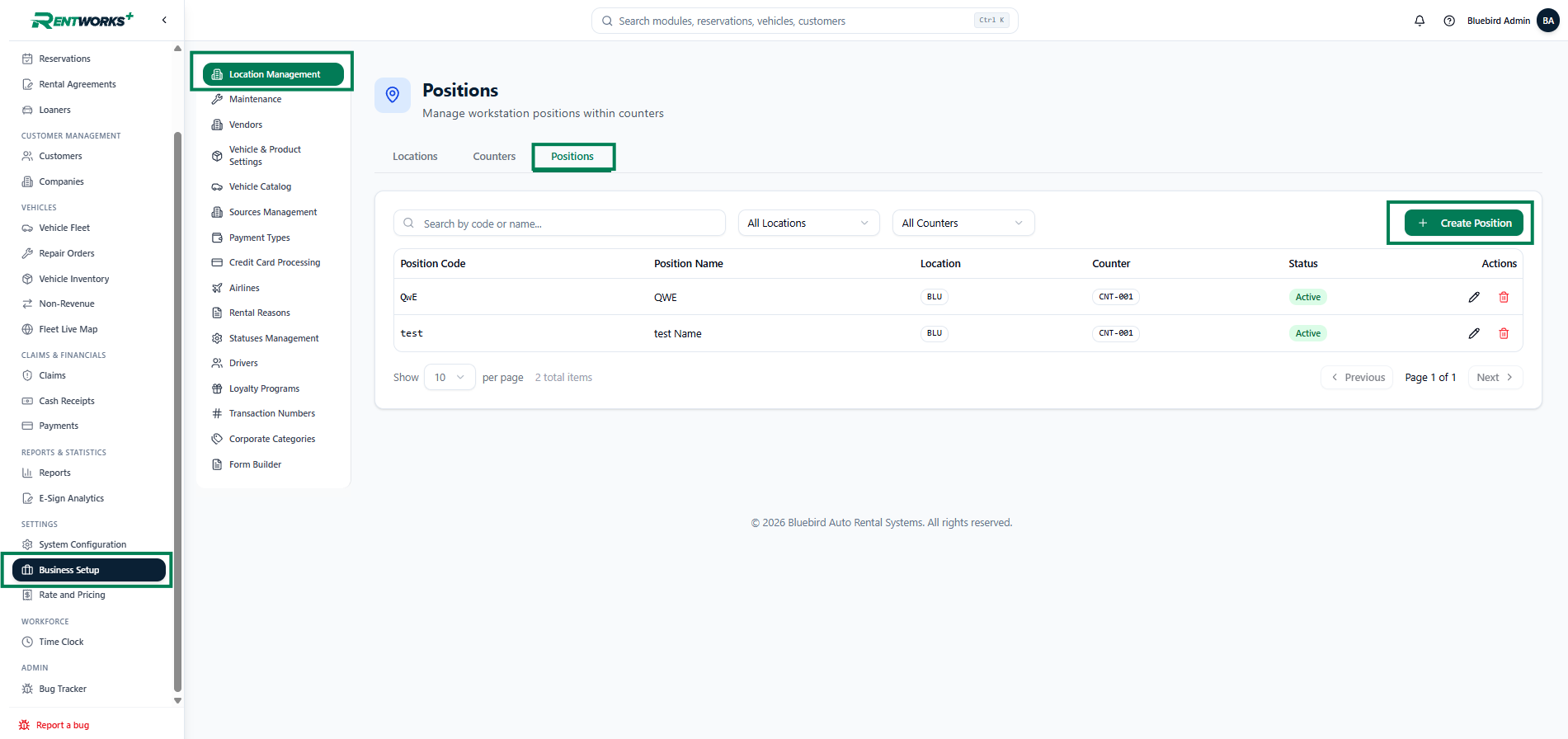
- In Business Setup → Location Management, open the Positions tab.
- Select Create Position.
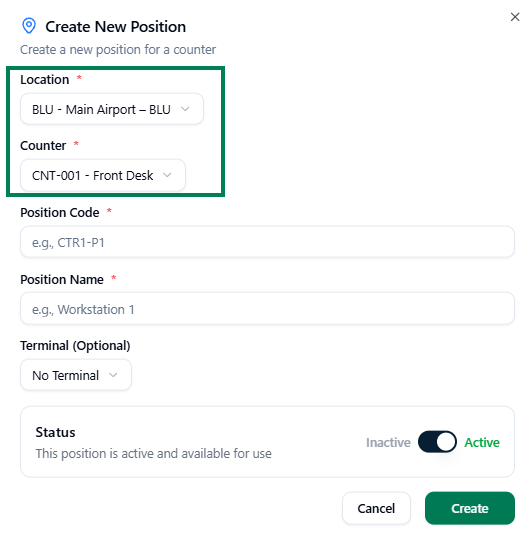
- Select the required Location.
- Select the required Counter within that location.
- Enter a Position Code *, such as CTR1-P1.
- Enter a Position Name *, such as Workstation 1.
- If applicable, select a Terminal (Optional). Otherwise, leave No Terminal selected.
- Keep the Status set to Active to make the position available for use.
- Select Create.
 4. Change your selection in Terminal Settings
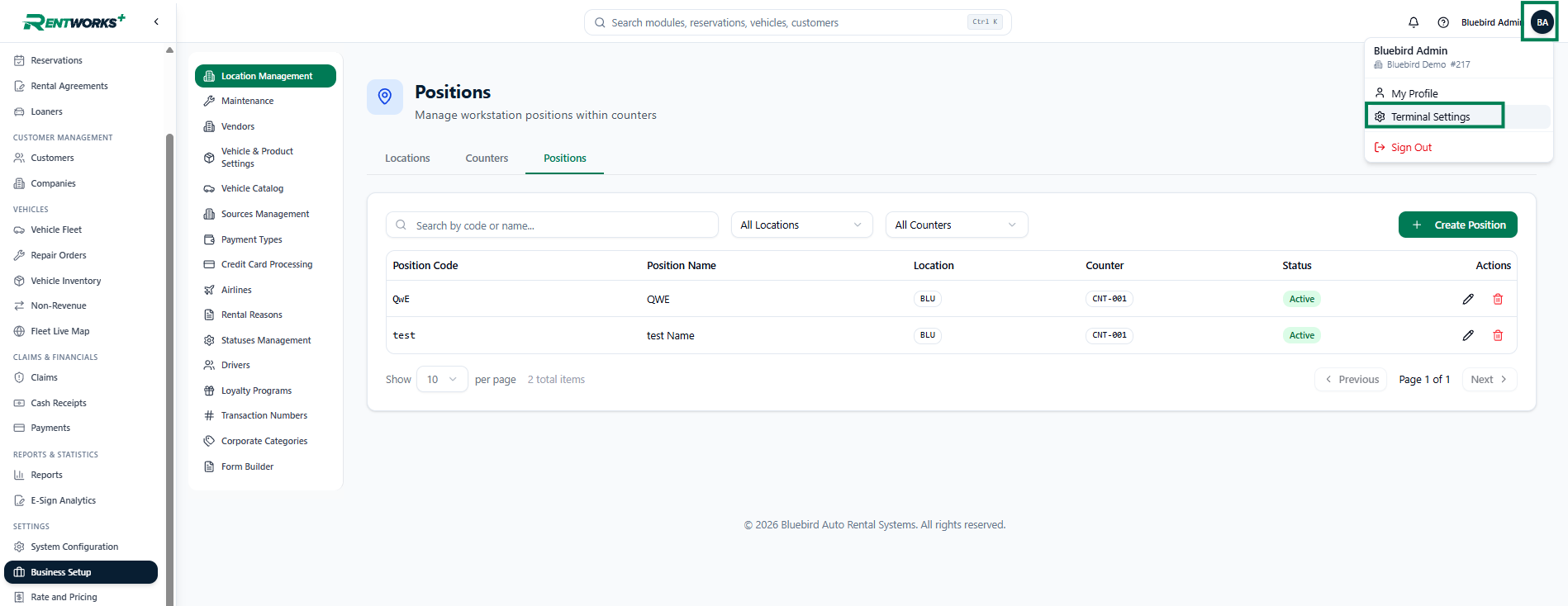
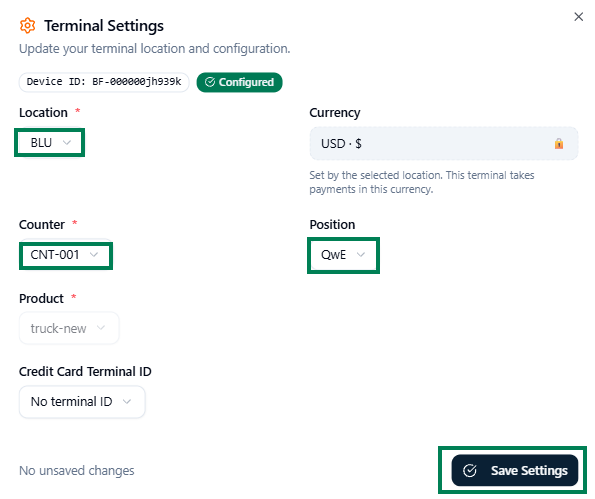
Once the records have been created, use Terminal Settings to select the location, counter, and position for your terminal.
- Select your profile icon in the upper-right corner.
- Select Terminal Settings.
- Select the required Location *.
- Select the appropriate Counter * for that location.
- Select the appropriate Position for that counter.
- Review the required Product * selection and, if applicable, the Credit Card Terminal ID.
- Select Save Settings to apply your changes.
Check your setup
- Confirm the counter belongs to the intended location.
- Confirm the position belongs to the intended counter.
- After changing the location or counter in Terminal Settings, review the remaining selections before saving.
- If you cannot find a record, check that it has been created and is Active. Confirm you are selecting its parent location and counter.
Update an existing record
Open the relevant Locations, Counters, or Positions tab and select the pencil icon in the record’s Actions column. Make your changes and save the record.
If you need any assistance setting up your locations, counters, or positions, please contact our Customer Support team, we’re happy to help!