
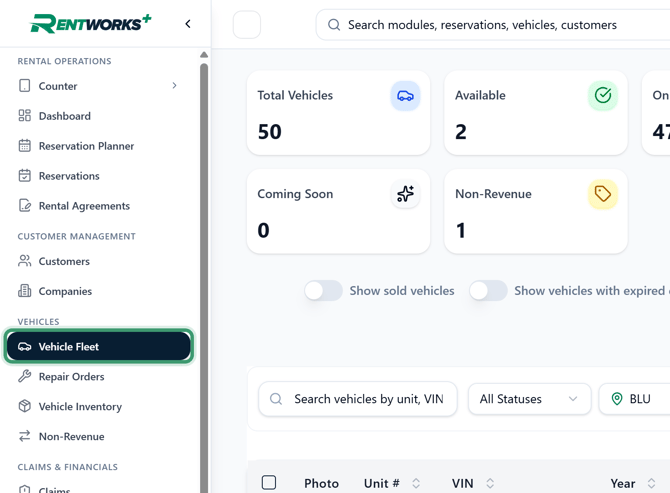
Navigate to Vehicle Fleet
1. Select Vehicle Fleet.
Find the vehicle
2. On the Vehicle Fleet page, find the vehicle you need to update. A vehicle with an expired registration shows a red Doc Expired badge in the Documents column, with the expired documents listed underneath (e.g. Invoice, Registration). Use the search bar to look up a vehicle by unit number, VIN, or license plate.
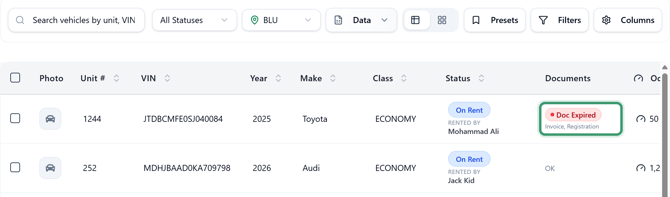
3. Click the vehicle's row to open its vehicle profile.
Edit the vehicle
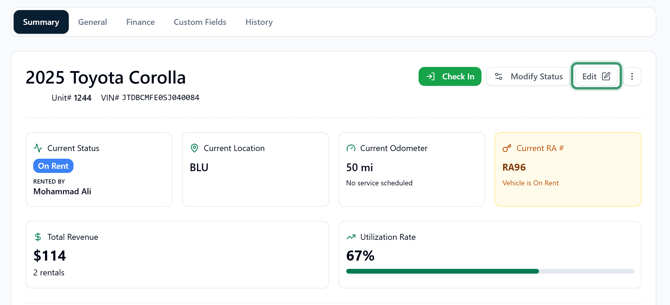
4. On the vehicle profile, click Edit in the top right corner of the vehicle summary.
Update the license expiration date
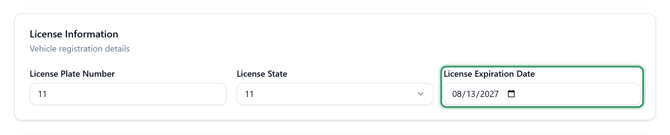
5. The vehicle opens in edit mode on the General tab. Scroll down to the License Information section. A red Registration expired alert shows how many days ago the registration expired, and the License Expiration Date field shows the current (expired) date.
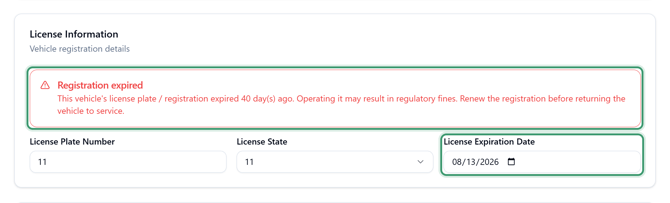
6. Click the License Expiration Date field and enter the new expiration date from the renewed registration. Once the date is in the future, the Registration expired alert disappears.
Save the changes
7. Click Save Changes at the bottom of the page to update the vehicle record.