
1) Prepare the Agreement Form
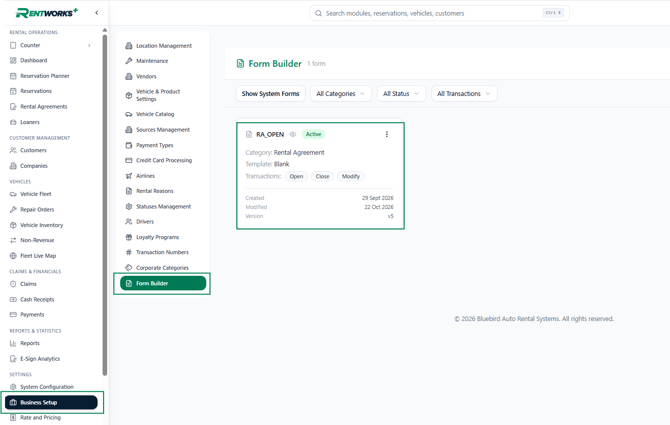
Open Form Builder
Go to Business Setup → Form Builder and open the agreement form you want customers to sign.
Add the Signature Fields
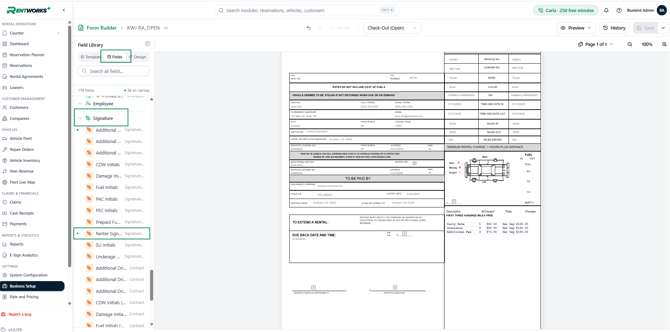
Select Fields, then scroll to the Signatures section. Drag Renter Signature onto the agreement and position it where the renter needs to sign.
Add other signature fields as needed:
- Additional Renter Signature for an additional driver.
- CDW for the corresponding CDW acknowledgment.
- Other signature fields for their matching sections of the agreement.
Renter Signature is the main signature field. Use the appropriate field for each additional signature required.
Save the Form
Review the placement of all signature fields, then select Save.
-png.png?width=670&height=328&name=03_image(20261022-213007)-png.png)
2. Configure Email Notifications
Under System Configuration → Notifications, confirm that the sender email address is verified. If no verified sender is available, add an email address and complete verification.
We recommend using a shared company address, such as info@yourcompany.com, so signing requests come from your company.
Under Notification overview, locate E-Signature and enable Email. This is required to send e-signature requests by email. Save your changes.
-png.png?width=1896&height=921&name=04_image(20261022-213122)-png.png)
3. Send an Agreement for E-Signature
Locate the Rental Agreement
Open Counter to access the relevant transaction. To locate an existing rental agreement (RA), use Contract Inquiry.
-png.png?width=670&height=355&name=05_image(20261022-213335)-png.png)
Open the rental agreement and select Send for E-Signature.
-png.png?width=670&height=394&name=06_image(20261022-213530)-png.png)
Choose How the Customer Will Sign
Select one of the following options:
- Sign on this device: The customer signs using the current device.
- Email a signing link: The customer receives an email with a link to review and sign the agreement.
The following steps show the email signing process.
-png.png?width=670&height=537&name=07_image(20261022-213545)-png.png)
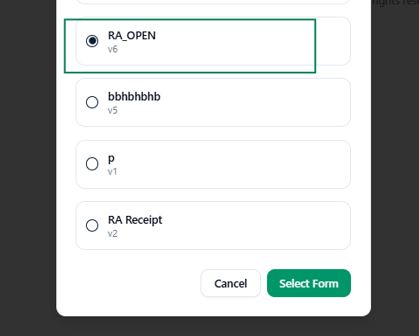
Select the Agreement Form
Choose the agreement form prepared with the required signature fields, then select Select Form.
Confirm the Signer Details
Check the renter’s name and email address. For email delivery, make sure the email address is correct and Email is selected.
Select Build Document.
-png.png?width=1184&height=531&name=09_image(20261022-213724)-png.png)
Review and Submit
Review the generated agreement and confirm that the required signature fields appear in the correct locations.
Select Submit Document to send the signing request.
-png.png?width=1193&height=881&name=10_image(20261022-213827)-png.png)
4. Track the Signing Request
The E-Signature Status screen displays the request’s progress. From this screen, you can resend the invitation or send a reminder.
You can also track requests from the E-Signature tab.
-png.png?width=1722&height=860&name=11_image(20261022-214053)-png.png)
5. Customer Signing Process
Open the Signing Email
The customer receives an email inviting them to sign the agreement. They select Sign Document to begin.
Customization: The email’s theme, subject, and content can be customized to match your company’s branding and messaging.
-png.png?width=1701&height=920&name=12_image(20261022-214241)-png.png)
Review and Acknowledge
The customer reviews the agreement and completes each required acknowledgment shown in the signing panel.
-png.png?width=1310&height=943&name=13_image(20261022-214350)-png.png)
Sign and Submit
The customer creates their signature using one of the available styles:
- Draw a signature.
- Type their name and choose a font.
- Use their initials.
After completing the required acknowledgments and applying their signature, the customer selects Submit Document.
-png.png?width=1181&height=849&name=14_image(20261022-214507)-png.png)
A Document Signed Successfully! message confirms completion.
-png.png?width=1158&height=743&name=15_image(20261022-214530)-png.png)
Download from the Status Screen
Return to RentWorks Plus and refresh the status if needed. Once signing is complete, the status displays Completed.
Select Download Signed Document to download the agreement.
-png.png?width=1199&height=486&name=16_image(20261022-214550)-png.png)
Access from the Rental Agreement
Open the RA and select Notes & Docs. The signed agreement is available in the Documents section.
-png.png?width=1901&height=898&name=17_image(20261022-214745)-png.png)
Open the document’s three-dot menu and select Download or Print. Select View status to check its signing status.
-png.png?width=807&height=404&name=18_image(20261022-214807)-png.png)
Customer Copy
The customer also receives an email with a copy of the signed agreement.
-png.png?width=1859&height=609&name=19_image(20261022-214919)-png.png)
The completed agreement displays the signature style selected by the customer in the designated signature locations.
-png.png?width=1176&height=854&name=20_image(20261022-214956)-png.png)
7. Review E-Signature Analytics
Open E-Signature Analytics to review signing activity, including when each request was sent and when the document was signed.
-png.png?width=1896&height=923&name=21_image(20261022-215131)-png.png)
You have now completed the e-signature process in RentWorks Plus. Your signed agreement is available to download, a copy has been emailed to the customer, and signing activity can be reviewed in E-Signature Analytics.
If you need assistance, please contact our Support team, we’re happy to help.