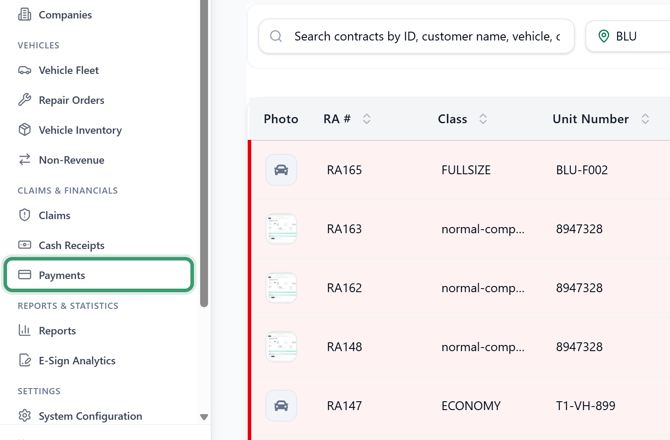
Log in and go to Payments
1. Log in to RentWorks+.
2. From the sidebar, select Payments under Claims & Financials.
Payments overview
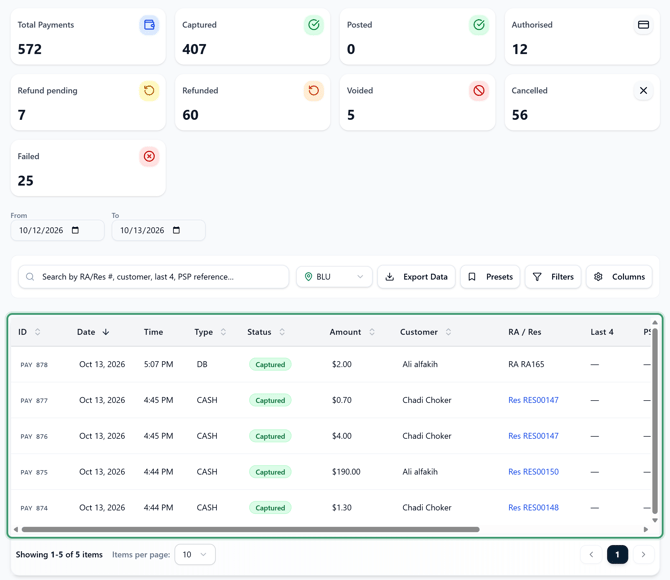
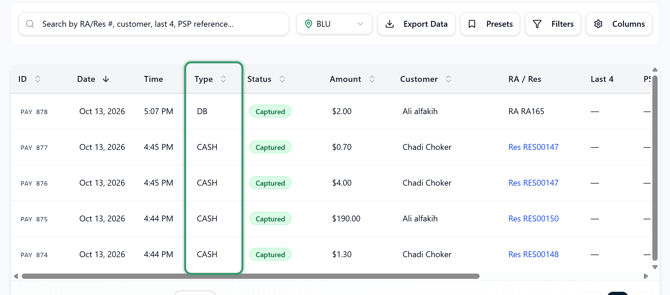
3. The Payments screen lists payment transactions taken on rental agreements and reservations. Each row shows the payment ID, Date, Time, Type, Status, Amount, Customer, the linked RA / Res, the card's Last 4, the PSP Ref (the payment processor's reference number), and the Location. Scroll the table to the right to see the Actions column, which has buttons to refund or void a payment where available.
Payment statuses and types
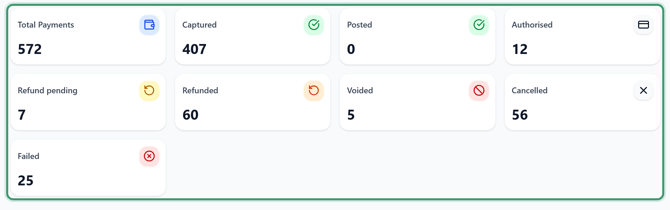
4. The cards at the top of the screen show how many payments are in each status:
- Total Payments: all payment transactions
- Captured: the money has been collected
- Posted: the payment has been posted
- Authorised: an authorization hold is on the card, but the money hasn't been collected yet
- Refund pending: a refund has been started but hasn't completed yet
- Refunded: the payment has been fully or partially refunded
- Voided: the payment or authorization hold was voided
- Cancelled: the payment was cancelled
- Failed: the payment didn't go through
The Type column shows the payment type used for each transaction, such as CC (credit card), CASH, or DB (direct bill).
Set the date range
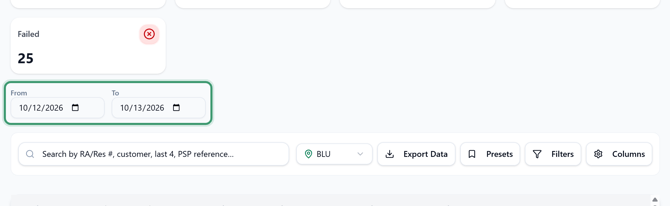
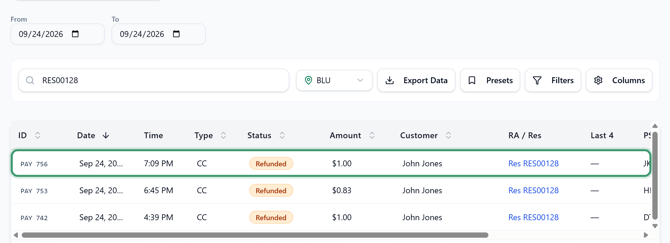
5. Use the From and To fields to choose the date range of payments to show. The list updates to show the payments taken between those dates.
Search and filter payments
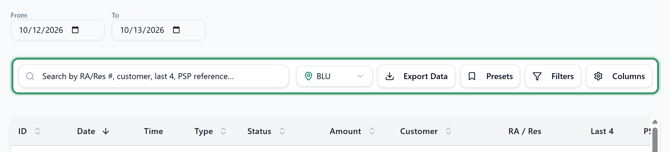
6. Use the search bar to find a payment by RA or reservation number, customer, card last 4, or PSP reference. Next to the search bar, you can choose the Location, click Export Data to export the list, use Presets to save and reuse your filters, and use Columns to choose which columns are shown.
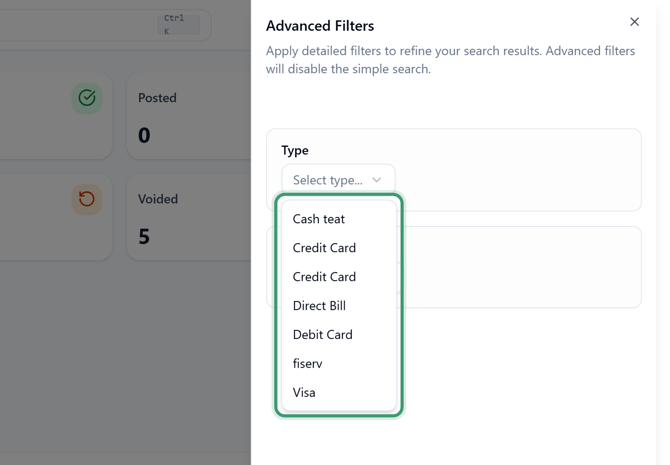
7. Click Filters to open Advanced Filters, where you can filter the list by payment Type and Status. Click Apply Filters to apply them, or Clear All to reset them. Advanced filters turn off the simple search.
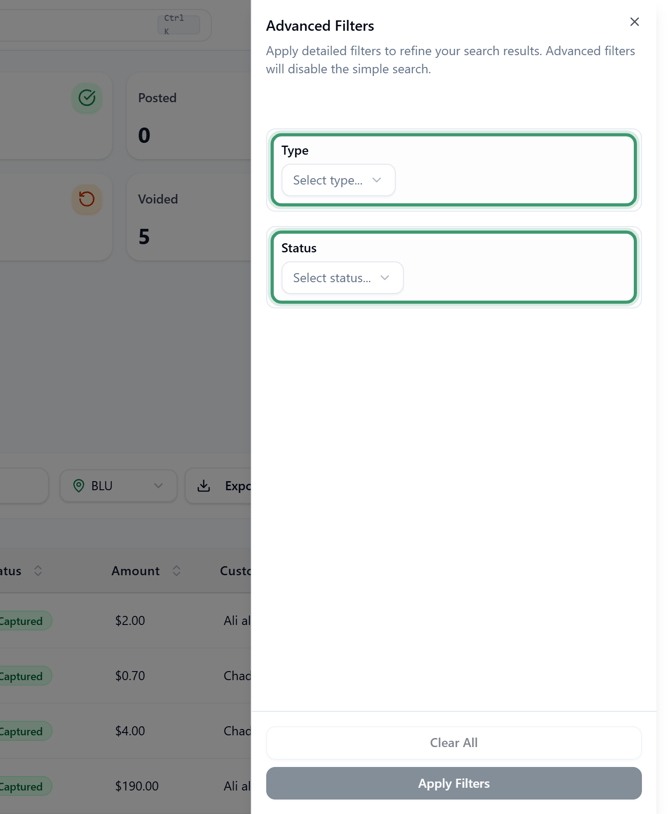
8. The Type dropdown lists the payment types set up for your account, such as cash, credit card, debit card, and direct bill.
View a payment's details
9. Click a payment in the list to open its details.
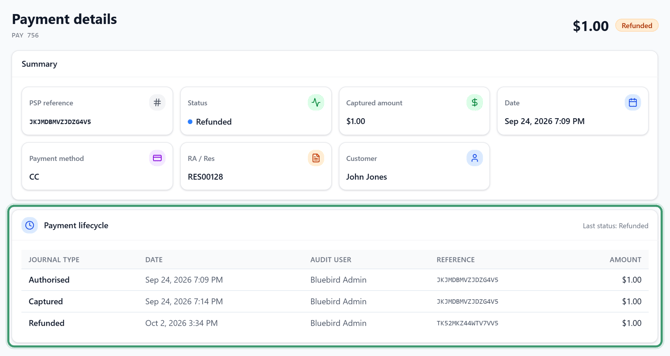
10. The Payment details page shows the payment ID, amount, and current status at the top. The Summary section lists the payment's PSP reference, Status, Captured amount, Date, Payment method, the linked RA / Res, and the Customer. Direct bill payments also show a Payment information section with the bill-to company, where the payment was taken (e.g. Counter), and the AR customer.
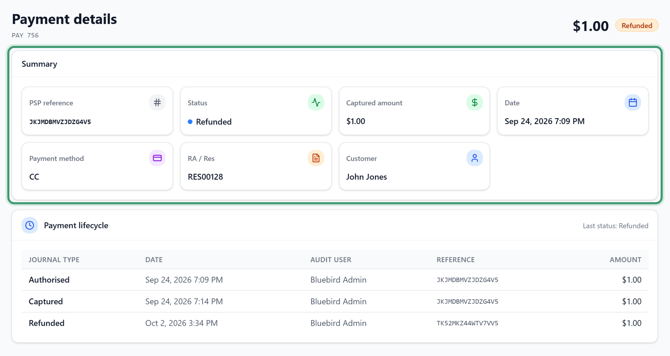
11. The Payment lifecycle section shows each step in the payment's history, such as Authorised, Captured, and Refunded, with the date, the user who performed it (Audit user), the processor Reference, and the Amount. Last status shows the payment's current status.