Claims Setup lives under Settings → System Configuration → Claims Setup in the sidebar. It contains eight tabs, each managing a different category of claims configuration. Most tabs follow the same pattern — a searchable list of existing entries and a Create New button to add more.
Navigate to Claims Setup
1. In the sidebar, click System Configuration under Settings, then select Claims Setup from the submenu. The page opens on the Types tab by default. All eight configuration tabs are visible across the top of the page.
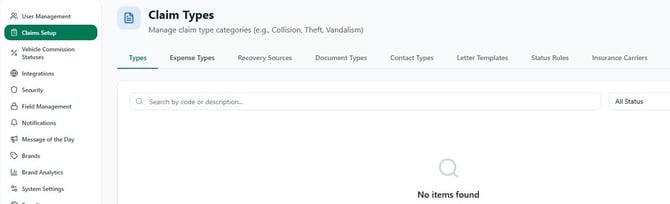
What each tab configures
Types — Claim type categories used to classify each claim (e.g., Collision, Theft, Vandalism, Glass). Every claim requires a type at creation.
Expense Types — Categories for costs recorded against a claim (e.g., Labor, Parts, Towing, Rental Replacement). Expense Types appear in the claim's Expenses section when adding costs.
Recovery Sources — Options for where subrogation or cost recovery is expected to come from (e.g., Insurance, Customer, Third Party). Used when recording recovery on a claim.
Document Types — Labels for attachments uploaded to a claim (e.g., Police Report, Repair Estimate, Photos). The Rental Agreement document type is marked Required by default — a claim cannot be closed without it attached.
Contact Types — Categories for contacts linked to a claim (e.g., Claimant, Witness, Adjuster, Repair Shop). Used in the Contacts section of a claim record.
Letter Templates — Correspondence templates with merge fields (e.g., , , ). Templates are used to generate standardized claim letters from within a claim record.
Status Rules — Automated rules that transition a claim's status on a schedule. Rules are evaluated daily at 8 AM UTC. Use these to automatically move stale claims through the lifecycle without manual intervention.
Insurance Carriers — Carriers configured for First Notice of Loss (FNOL) submissions. If your operation submits FNOL reports directly to carriers through RentWorks+, add them here.
Adding a new entry
The process is the same on every lookup tab (Types, Expense Types, Recovery Sources, Document Types, Contact Types).
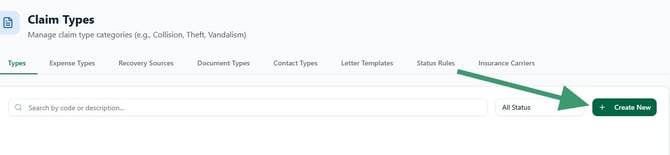
2. On the relevant tab, click Create New in the top right corner.
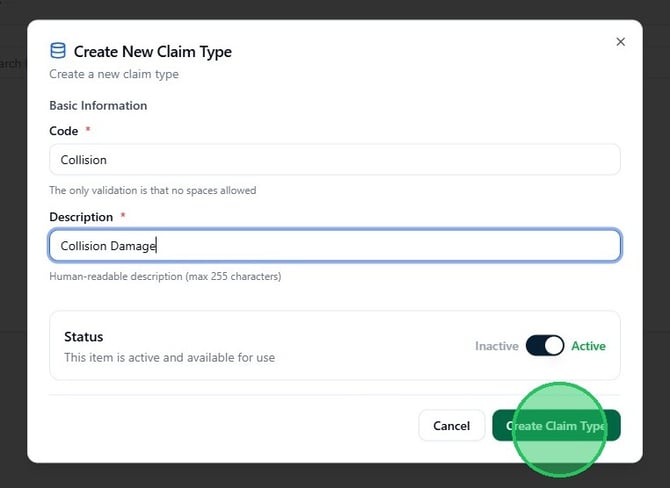
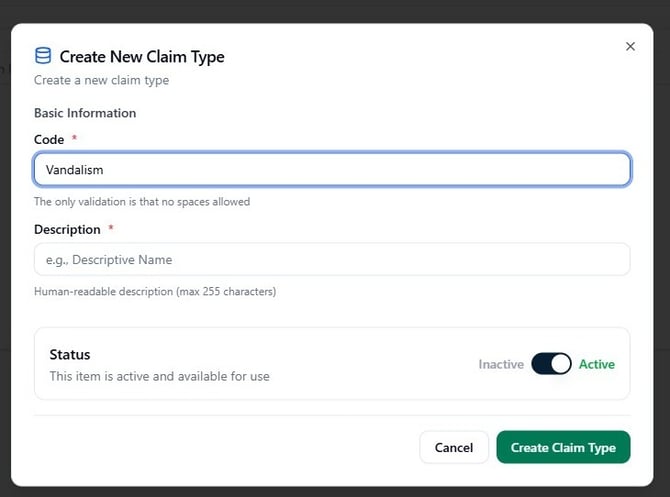
3. In the dialog, enter a Code and a Description. The Code is a short identifier with no spaces (e.g., COLLISION, VANDALISM). The Description is the human-readable label that appears throughout the claims workflow (max 255 characters). Leave Status set to Active so the entry is immediately available.
4. Click Create Claim Type (or the equivalent button for the tab you're on) to save. The new entry appears in the list immediately and is available for use on claims right away.