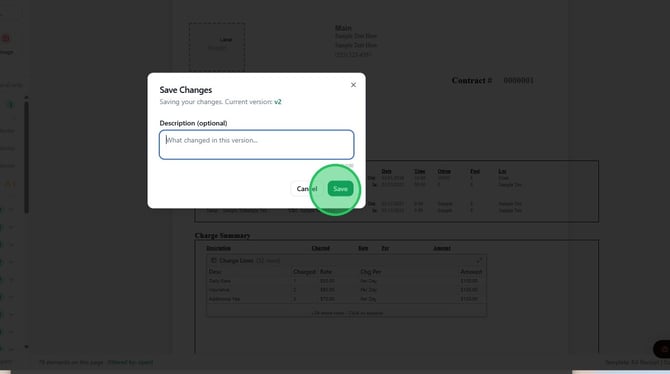
Business Setup contains the configuration areas for your rental business. Use this guide as a high-level tour of the main setup screens and the tabs available in each section.
Location and counter setup
-
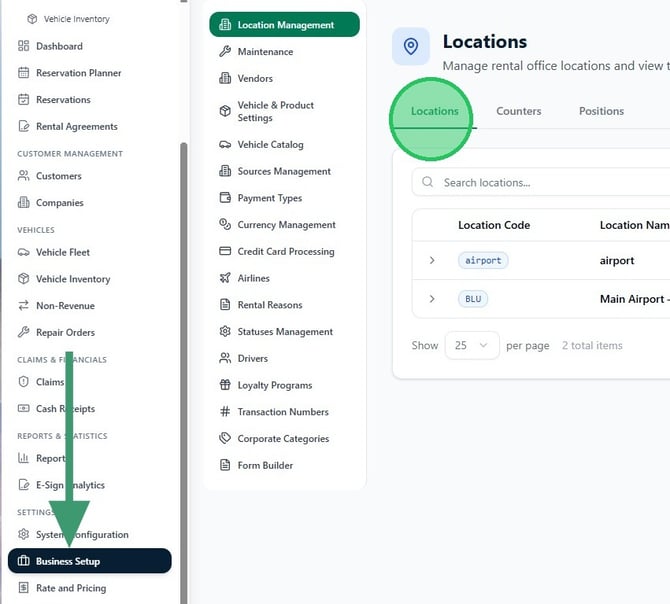
Select Business Setup from the sidebar. The Location Management section opens with the Locations tab selected. This screen lists rental locations and gives you access to Locations, Counters, and Positions.
-
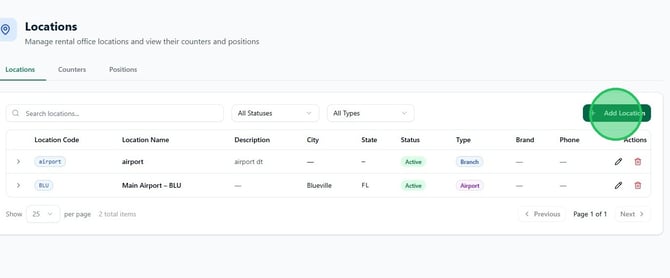
On the Locations tab, click Add Location to create a new rental location. To update an existing location, use the edit icon in the Actions column.
-
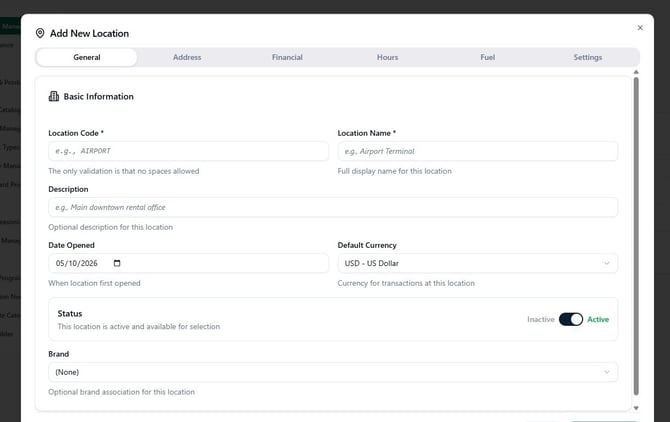
In Add New Location, use the General tab to enter the required Location Code and Location Name. You can also set optional basic information such as description, open date, default currency, status, and brand.
-
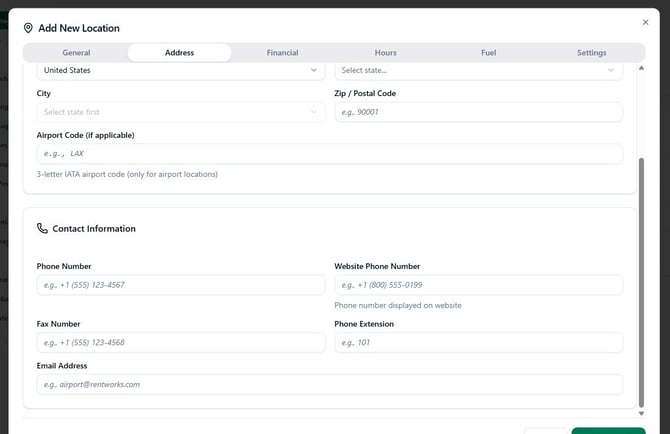
Use the Address tab to enter the location address and contact information, including phone numbers, fax number, website phone number, phone extension, and email address.
-
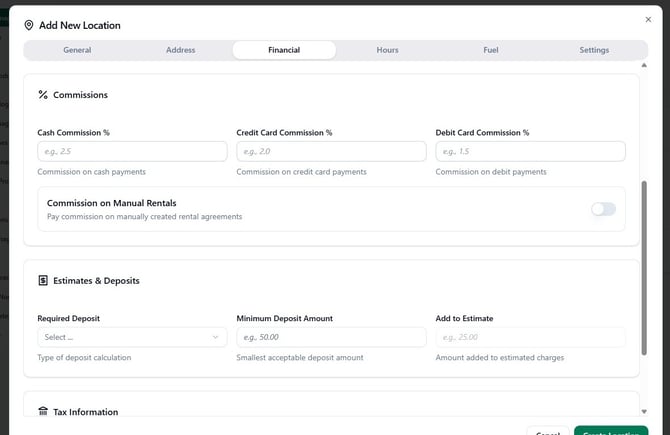
Use the Financial tab to enter commission settings, estimate and deposit defaults, and tax information for the location.
-
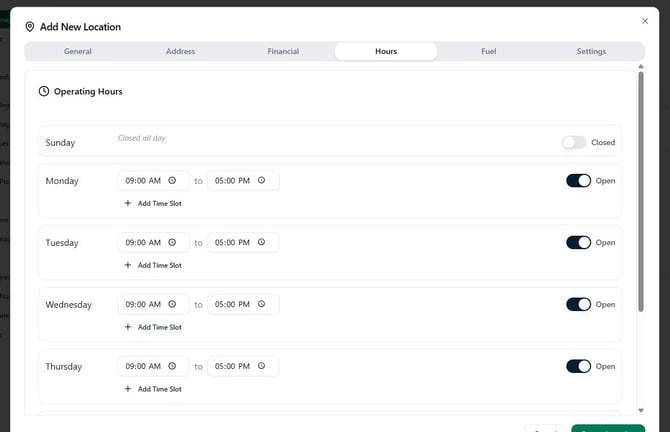
Use the Hours tab to set the location's operating hours. Each day can be marked open or closed, and open days can have start and end times.
-
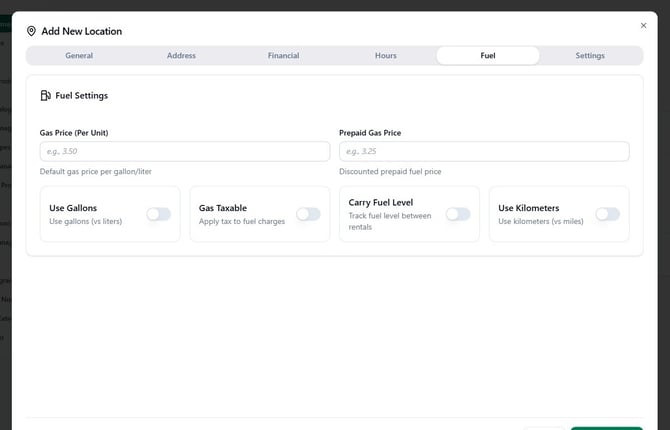
Use the Fuel tab to set fuel-related defaults, such as gas price per unit, prepaid gas price, whether the location measures fuel in gallons or liters, and whether to carry fuel level between rentals.
-
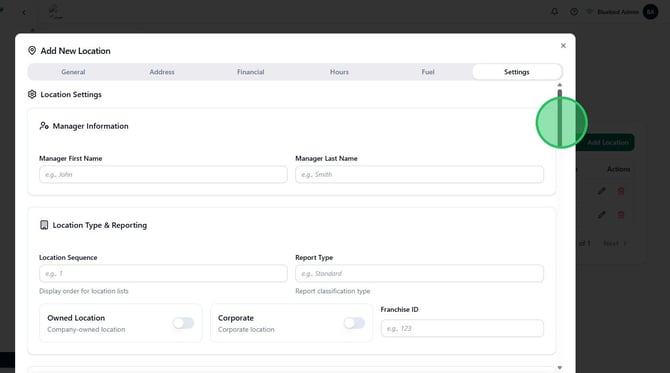
Use the Settings tab to review additional location settings, including manager information, location type and reporting fields, owned location, corporate, and franchise ID.
-
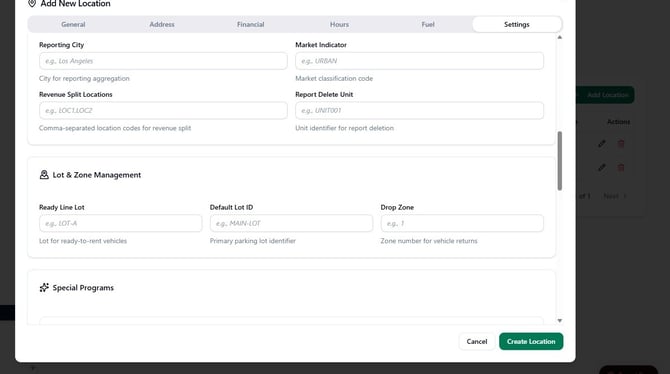
In the lower part of the Settings tab, review reporting and lot setup fields such as reporting city, market indicator, revenue split location, report device unit, ready line lot, default lot ID, and drop zone.
-
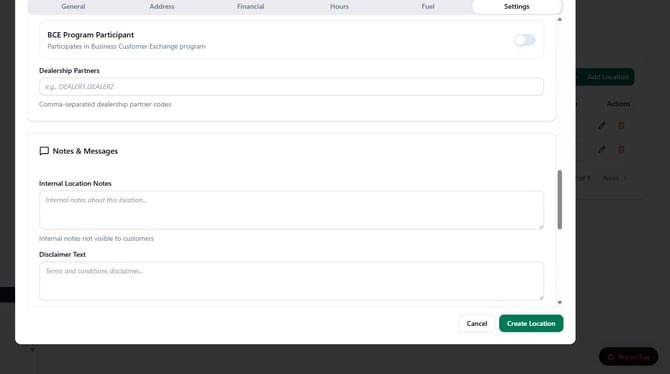
Continue through the Settings tab to review Notes & Messages, including internal location notes and disclaimer text.
-
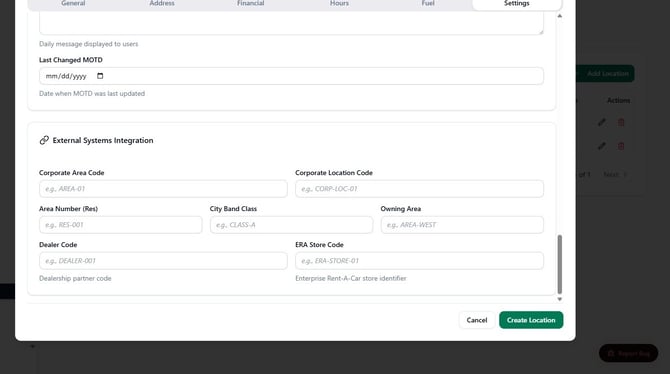
Review Internal Systems Integration fields if your location uses external system codes. These fields include values such as corporate area code, corporate location code, area number, city band class, owning area, dealer code, and ERA store code.
-
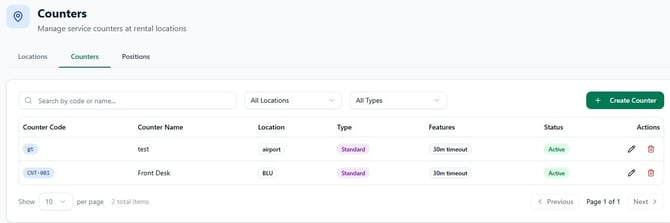
Use the Counters tab to manage rental counters for each location. The list shows the counter code, name, location, type, features, status, and action icons. The Positions tab is also available from this section for position setup, if used by your business.
Maintenance operations
-
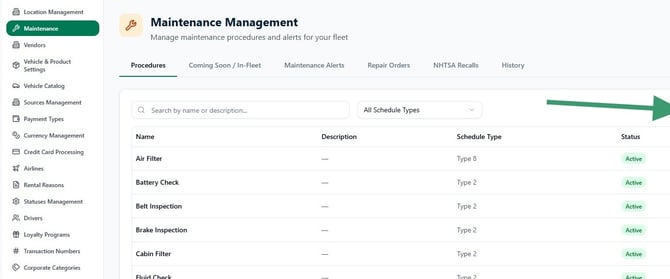
Select Maintenance. The Procedures tab lists maintenance procedures used for the fleet, such as inspections, oil changes, tire rotation, and other service tasks. Use Create Procedure to add a new procedure.
-
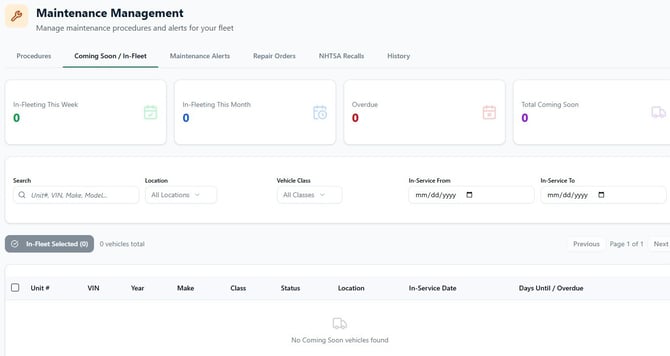
Use Coming Soon / In-Fleet to review vehicles approaching service or due for service. The screen includes summary tiles and filters for unit, location, class, in-service dates, and service status.
-
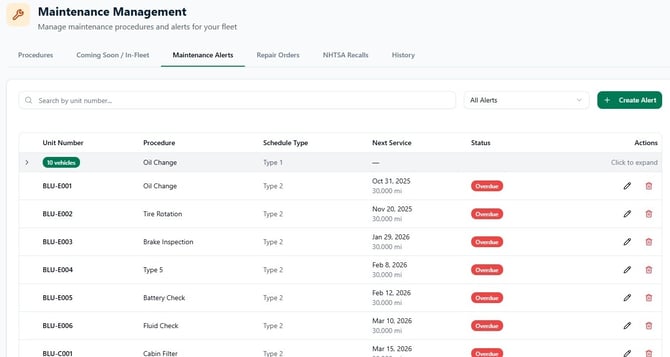
Use Maintenance Alerts to view scheduled service alerts by unit number, procedure, schedule type, next service, status, and actions.
-
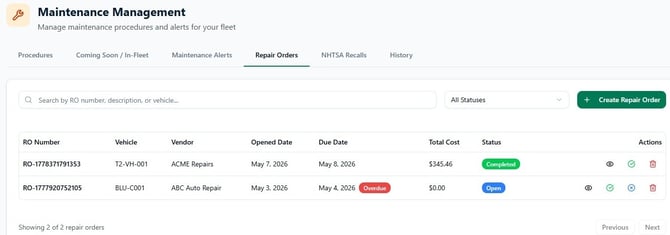
Use Repair Orders to review open or completed repair orders and create new repair orders when needed.
-
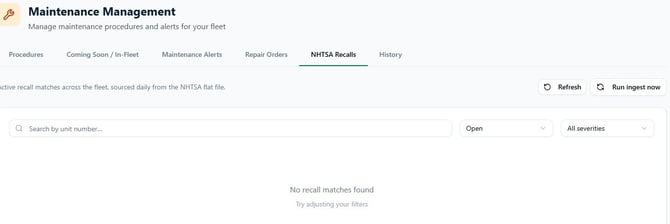
Use NHTSA Recalls to monitor active recall matches across your fleet. The dashboard shows recall severity, the last ingest date, and a Run ingest now button to manually trigger a recall check. Vehicles with active recalls are flagged on fleet cards and may be automatically moved to In Maintenance status depending on recall severity.
-
Use History to review past maintenance activity. If no history exists in the account, the tab may show an empty list.
Fleet and vendor configuration
-
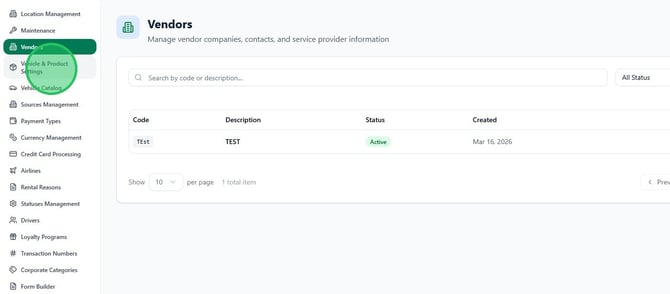
Select Vendors to review vendor records used by the business. The list shows vendor code, description, status, and creation date.
-
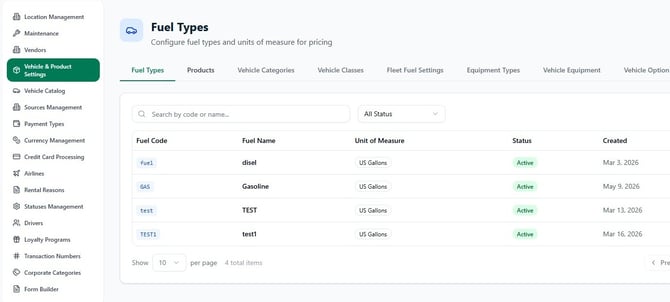
Select Vehicle & Product Settings. The Fuel Types tab lists the fuel types available for vehicles and pricing setup.
-
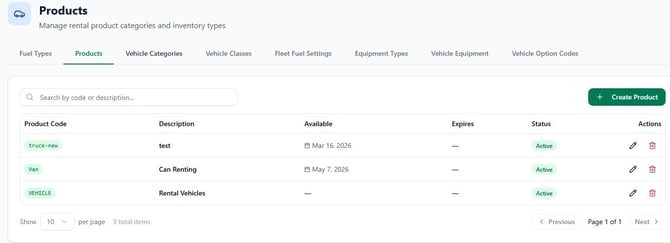
Use the Products tab to manage product codes, descriptions, duration, category, status, and action icons.
-
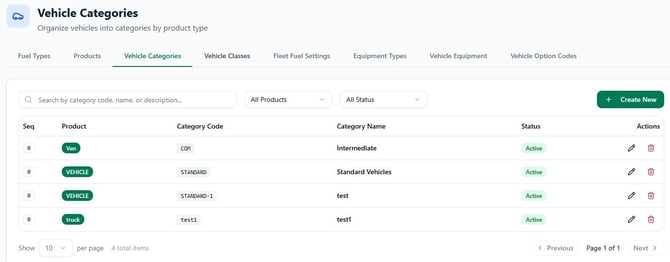
Use the Vehicle Categories tab to manage broad vehicle category groups.
-
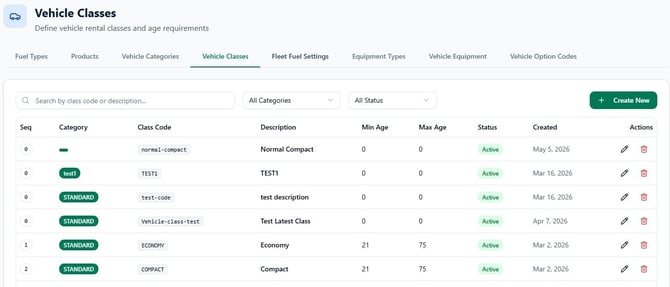
Use the Vehicle Classes tab to manage rental vehicle classes, including class code, description, mileage limits, age, seats, capacity, status, and start date.
-
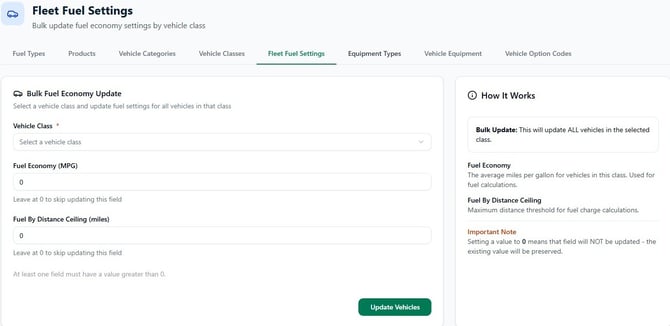
Use Fleet Fuel Settings to set fuel accounting and refill values for the fleet, such as full-tank fuel quantity, fuel minimums, prepaid rules, and related fuel settings.
-
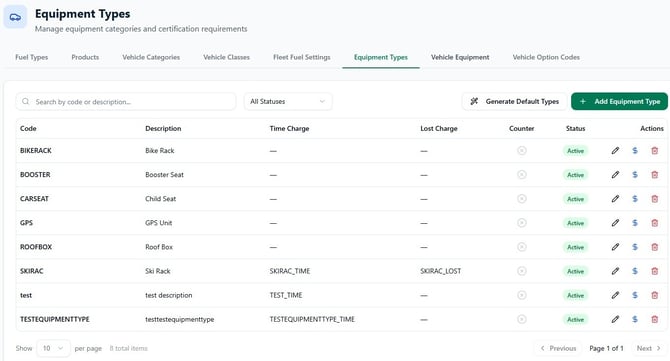
Use Equipment Types to manage optional equipment categories and charges, such as daily, weekly, monthly, and fixed-charge values.
-
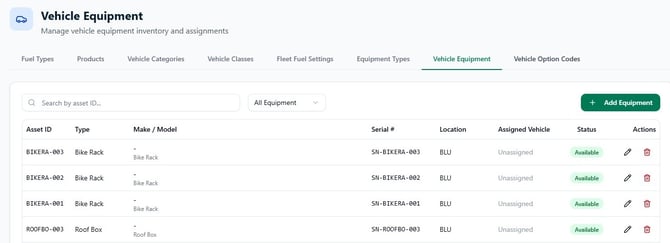
Use Vehicle Equipment to manage equipment assigned to vehicles, including serial number, location, assigned vehicle, and status.
-
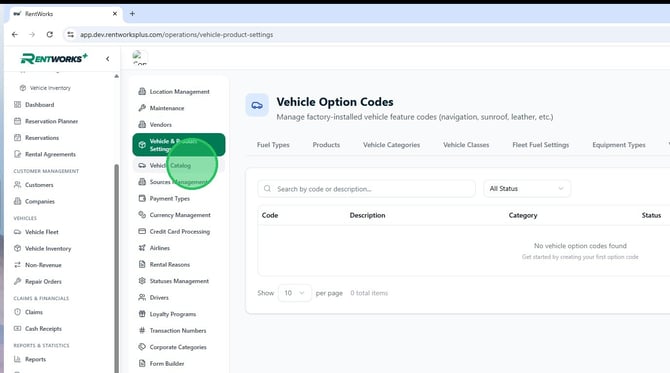
Use Vehicle Option Codes to manage option codes that can be associated with vehicles.
-
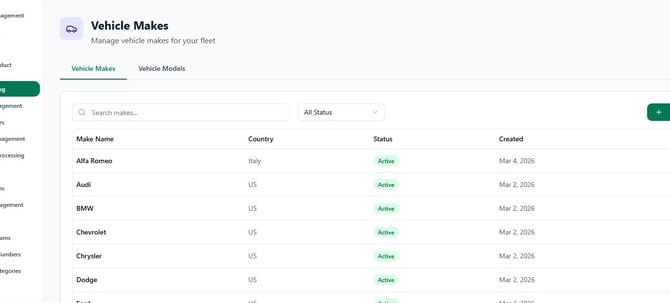
Select Vehicle Catalog to review vehicle makes. The Vehicle Makes tab lists make name, country, status, and creation date.
-
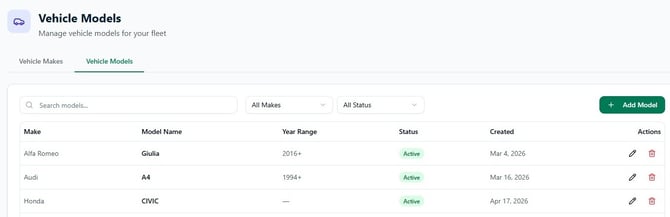
Use the Vehicle Models tab to review or add vehicle models under the catalog.
Business and payment settings
-
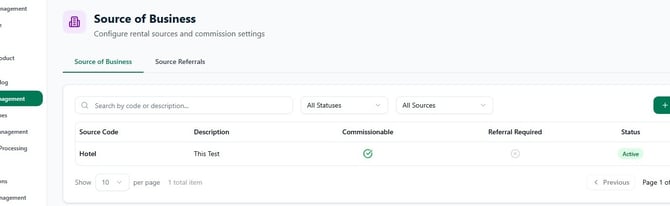
Select Sources Management. The Source of Business tab lists source codes used to track how business was referred or booked.
-
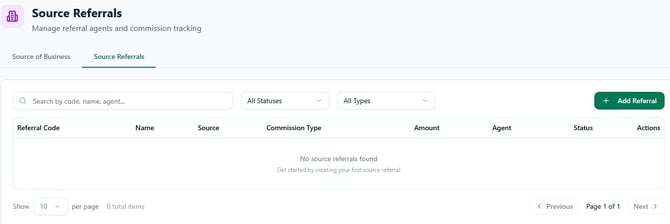
Use Source Referrals to manage referral source details such as referral code, name, commission type, amount, and related flags.
-
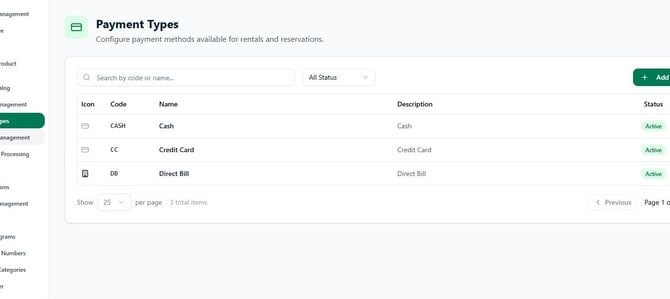
Select Payment Types to review the payment methods available in the system.
-
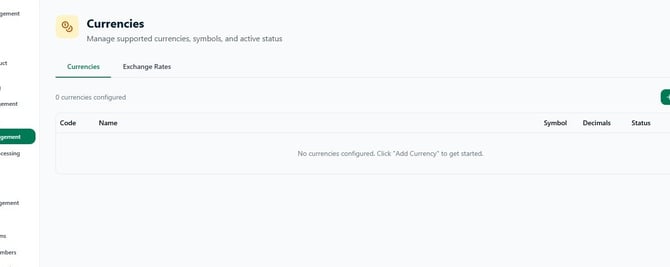
Select Currency Management to review configured currencies.
-
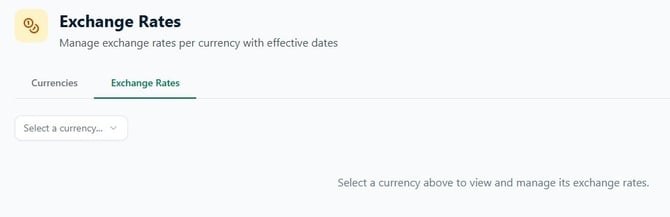
Use Exchange Rates to manage exchange rates by currency and effective date.
-
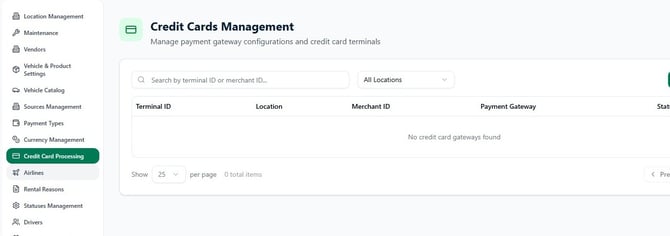
Select Credit Card Processing to open Credit Card Management, where payment terminals and related processing settings are listed.
-
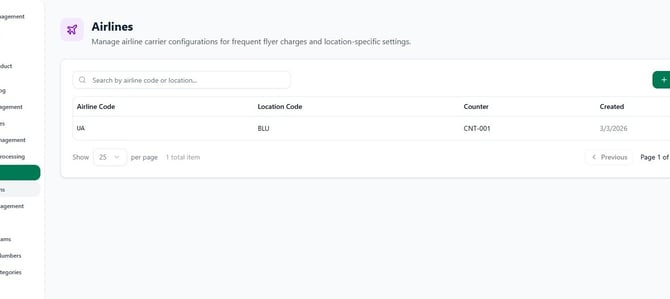
Select Airlines to manage airline codes used for airport or travel-related reporting.
Operational statuses and drivers
-
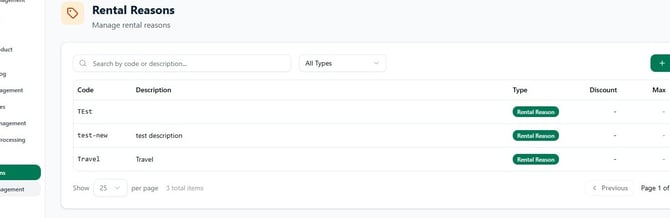
Select Rental Reasons to manage reason codes used on rentals, including type, discount, notes, and status.
-
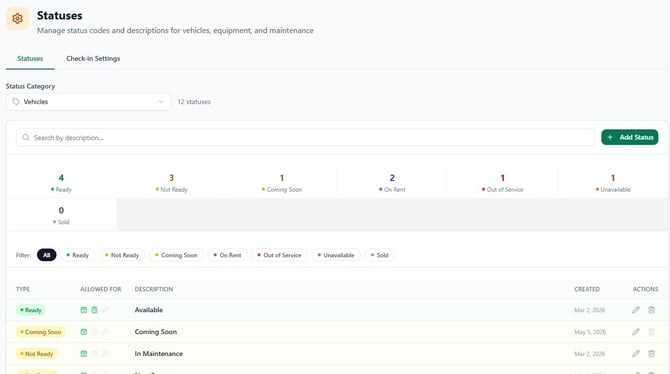
Select Statuses Management to review status categories and individual status values used throughout RentWorks+.
-
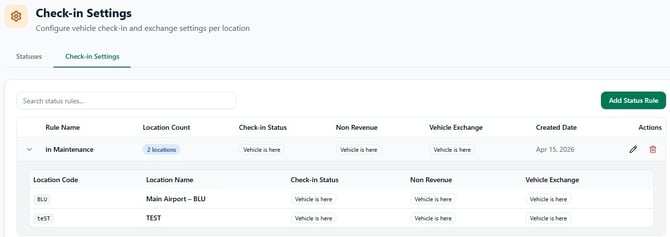
Use Check-in Settings to manage check-in rules and damage-related settings, including the Damages and New Damages tabs.
-
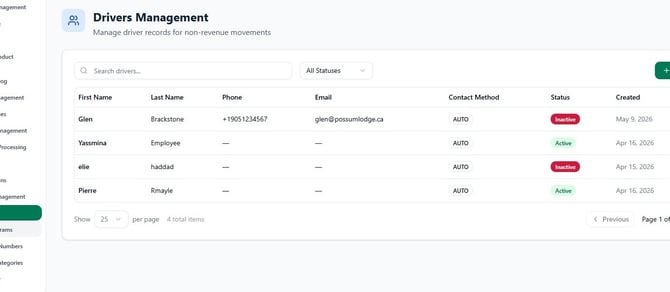
Select Drivers to review driver records and driver statuses.
-
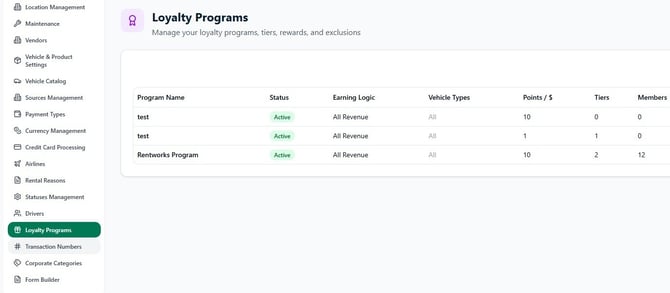
Select Loyalty Programs to review configured loyalty programs, tiers, reward rules, and status.
Administrative and form tools
-
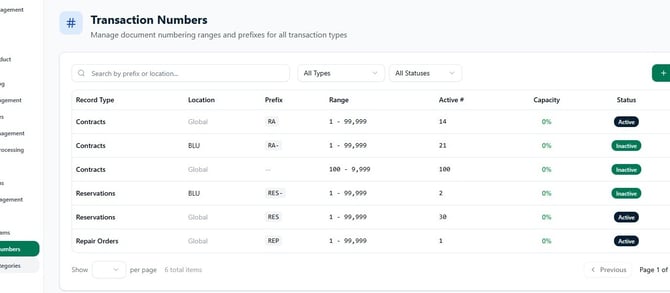
Select Transaction Numbers to review number ranges used for different transaction types.
-
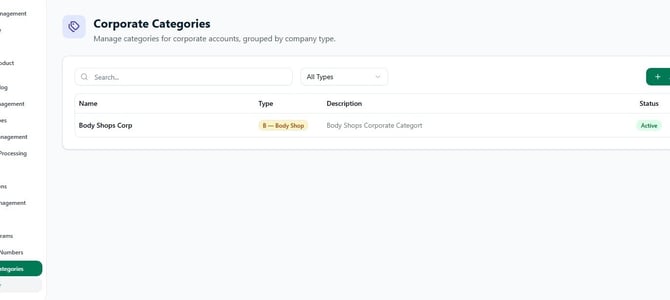
Select Corporate Categories to review company category records and their status.
-
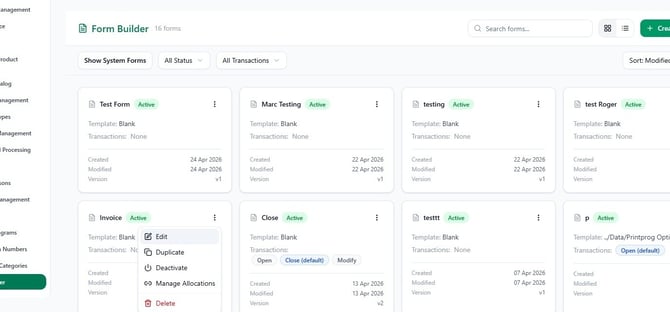
Select Form Builder to review available form templates. The list shows forms by category and status.
-
In Form Builder, click Edit to open a form template for editing.
-
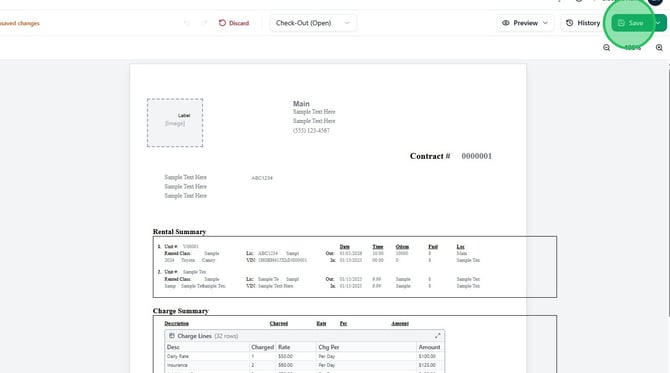
After making form changes, click Save. If prompted, enter change notes and click Save Changes to confirm.